01Getting started
Start at the ProtectSMB GRC website and choose Sign in, or go straight to the /login address of your workspace. Sign in with your email and password. If your workspace requires multi-factor authentication you will be asked to enrol the first time you sign in: scan the QR code with any authenticator app, then enter the six-digit code. Keep your recovery codes somewhere safe — they are the way back in if you lose your phone.
Everything you do happens inside a workspace, which belongs to your organisation's email domain. Your role decides what you can change:
Admin — everything, including users, billing, branding and platform settings.
Assessor — can score controls and add evidence and notes, but not manage the workspace.
Contributor — can update the controls they are responsible for.
Viewer — read-only; useful for an auditor or a board member.
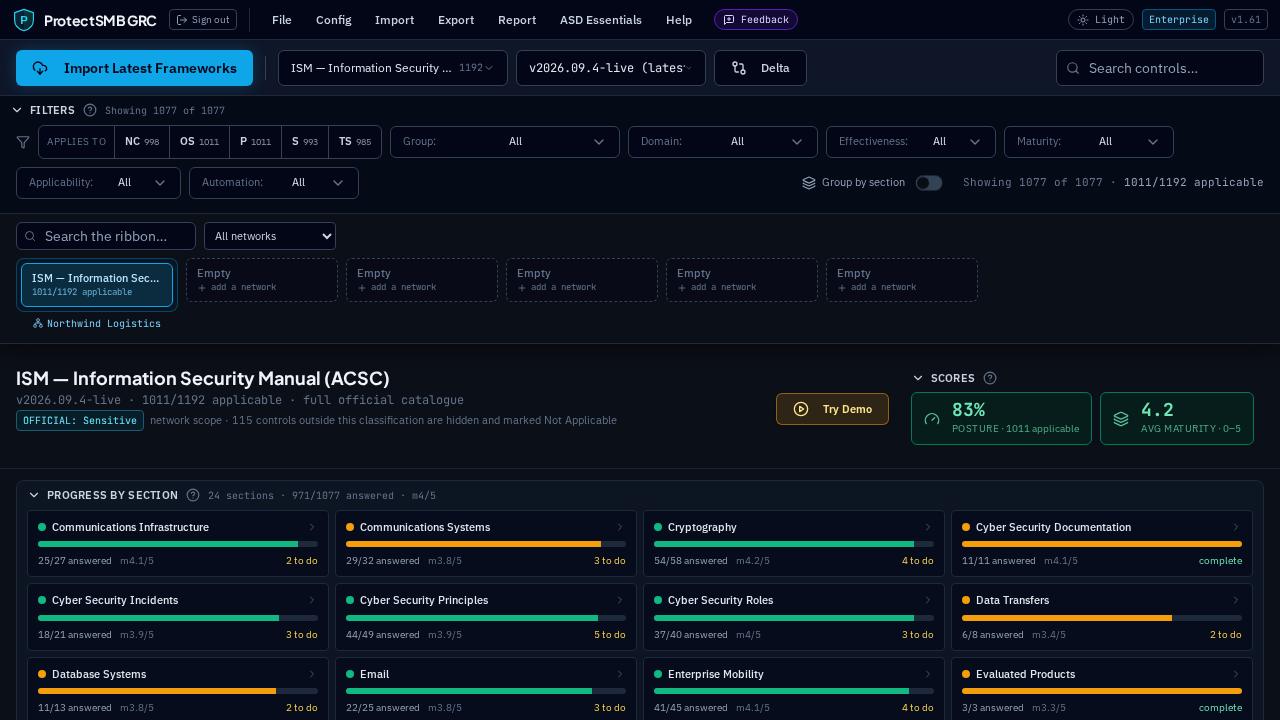
The bar across the top holds the menus (File, Config, Import, Export, Report, Help), the framework and version you are working in, and the Light/Dark theme switch. Your licence tier is shown on the right — it decides which features are available.
Every panel on screen — filters, scores, progress, the matrix itself — can be minimised with the chevron beside its title, and your choices are remembered the next time you sign in. Help → 'Reset minimised sections' opens them all again. The question mark beside a panel title opens a short guide for that panel without leaving the page.
02Assessing controls
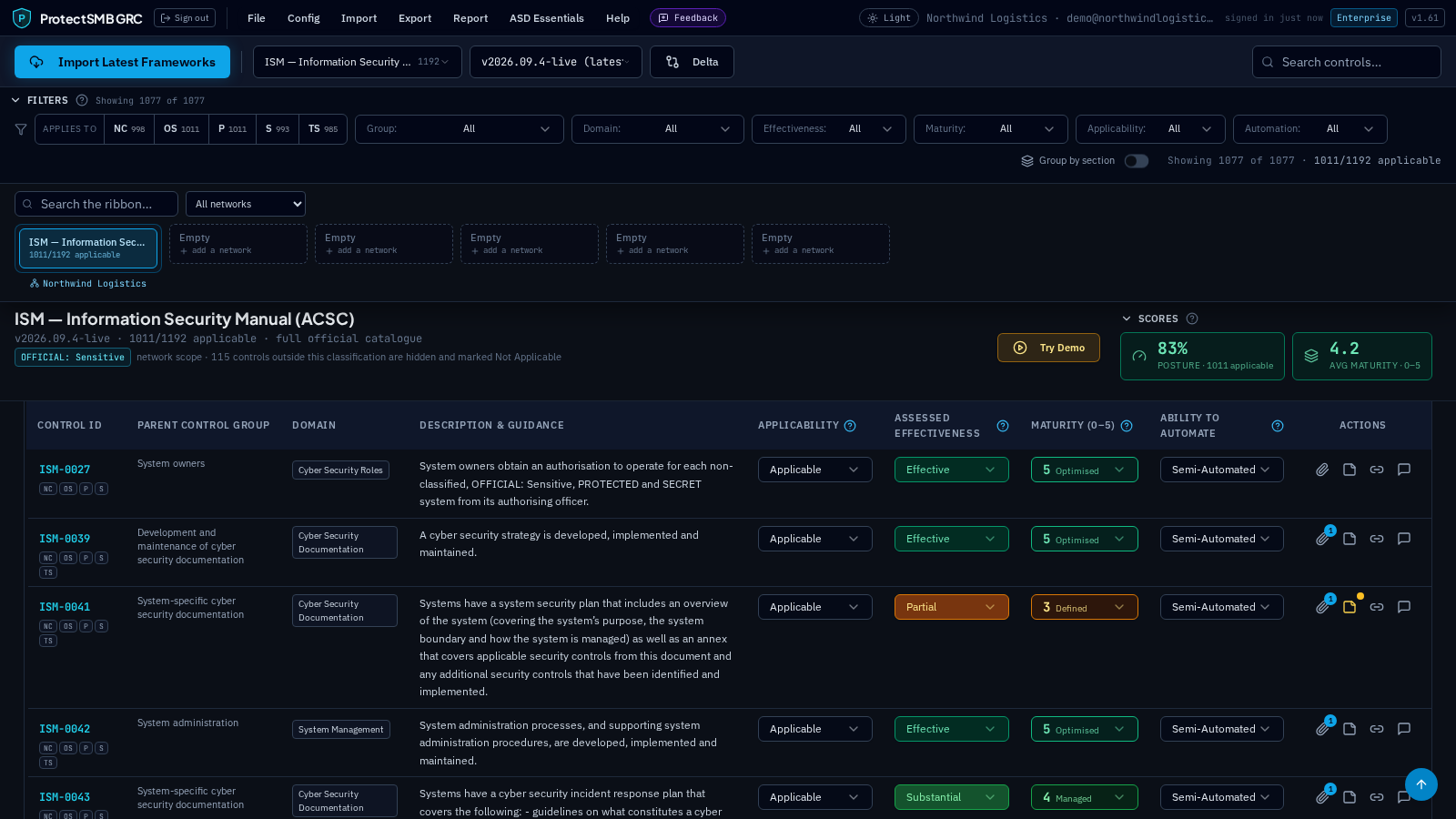
The control matrix is the heart of the product. Each row is one control from the chosen framework, and you record four things against it:
Applicability — Applicable, or Not Applicable when the control genuinely does not apply to your environment. Controls outside your network's classification are marked out of scope automatically and are excluded from your scores.
Assessed effectiveness — Effective, Substantial, Partial, Ineffective or Not Assessed. This drives your posture score.
Maturity — 0 to 5, describing how consistently and repeatably the control is applied.
Ability to automate — how much of the control can be handled by tooling rather than by people.
Above the matrix you have filters for group, domain, effectiveness, maturity, applicability and automation, plus a search box. 'Group by section' collapses the list into parent control groups and shows a score for each one; the group heading and the column headers stay pinned while you scroll, and the Control ID column stays put when you scroll sideways.
The counts at the top read as applicable over catalogue — for example 123/123 applicable — so you always know how much of the framework is in scope for you. Your posture score and average maturity sit beside the framework title and stay visible as you work down the list.
03Notes and evidence
Two things turn a score into something you can show an assessor: a short statement of how you meet the control, and the files that prove it.
The note icon on each row opens 'How we meet this'. Write one or two sentences in plain language — what is in place, which system enforces it, who is responsible and how often it is checked. A dot on the row shows which controls are documented.
To save time, the dialog suggests starter wording matched to that control's own text — multi-factor authentication, patching, application control, backups, logging, access reviews, training and more. Add one and edit it so it describes what you actually do. If you have wording you will reuse, name it and save it as a snippet, then apply it to any control with one click.
The paperclip icon opens the evidence vault for that control, where you can upload supporting files up to 15 MB each. Every file records who uploaded it and when.
Your notes flow into the executive summary, the certificate appendix, the CSV export and the assessor's view, and they are given to the AI when it drafts implementation advice. Your evidence is listed against each control in the SSP Annex, each finding in the Security Assessment Report and each item in the POA&M.
04Working with several networks
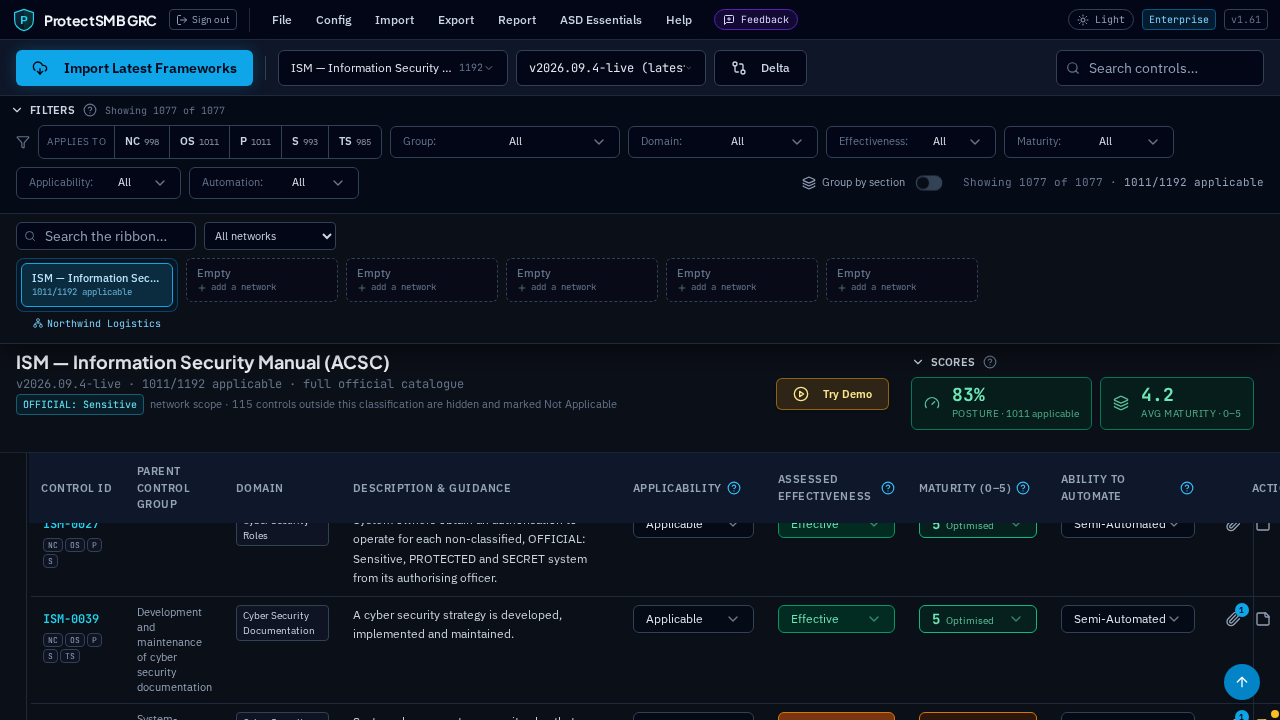
Many businesses run more than one environment — a corporate network, a client site, a separate classified system. The ribbon under the filters holds a slot for each network — three on every plan, up to six on the Enterprise tier, and ten on an MSP account plus five more for each network pack it holds.
Click an empty slot to add a network and choose its framework and classification.
Slots on the same network are gathered into one box, wherever they happen to sit, with the network's name centred underneath — so two frameworks on your head office read as one network, not two.
Search the ribbon or pick a single network from the dropdown beside it when you are running several, and scroll the row with the arrows if it runs off the screen.
A new network appears on the ribbon straight away — there is nothing to refresh.
Each network keeps its own answers, notes, evidence and documents, so nothing bleeds between them.
'Copy network' clones a finished network's answers into a new one — useful when a new site starts from the same baseline.
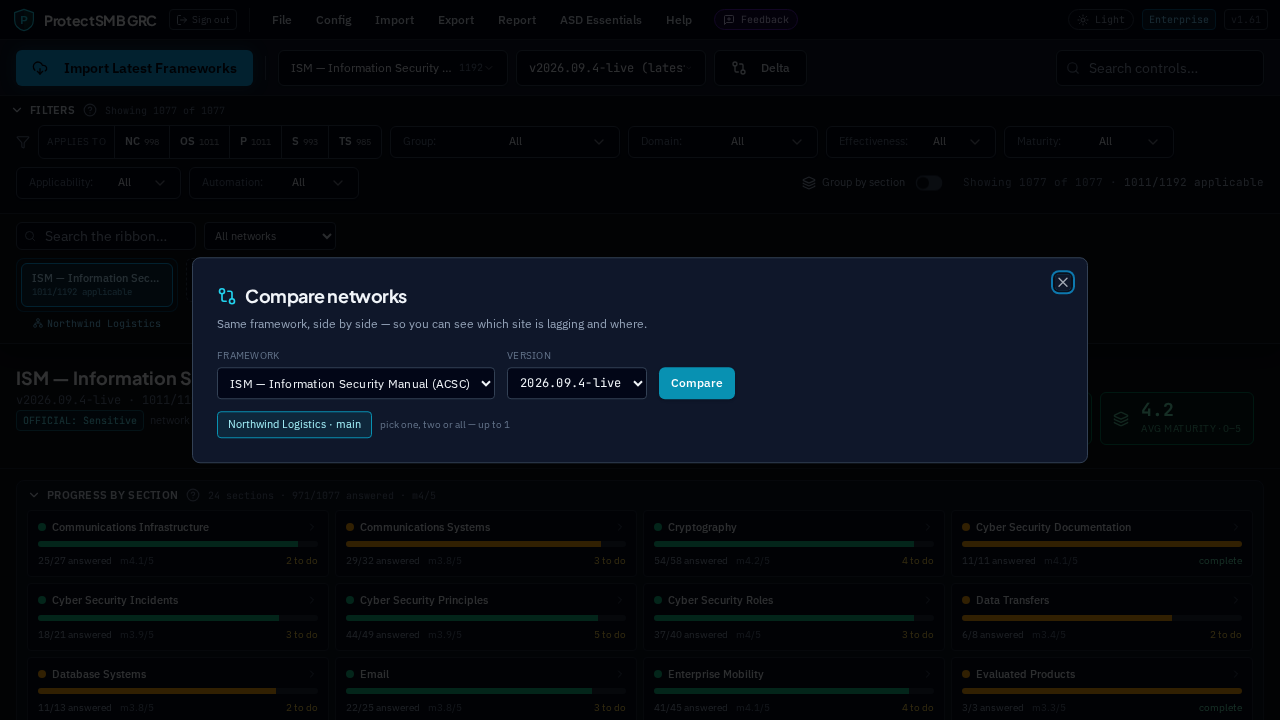
'Compare networks' (Report menu) puts two networks side by side so you can see where one is behind the other.
05Remediation tracking
Report → Remediation Tracker holds the work needed to close your gaps. Raise a task against a control, give it an owner and a due date, and track it to completion. The open task count appears on the control row and in your board reporting, so remediation progress is visible without anyone chasing a spreadsheet.
06Reports
Everything in the Export and Report menus is generated from your live assessment data:
Compliance Certificate — a one-page attestation with your posture score and a breakdown by effectiveness, plus an appendix of your implementation statements.
Executive Summary — the fuller picture: results by domain, priority remediation and a 'What We Already Do' section drawn from your notes.
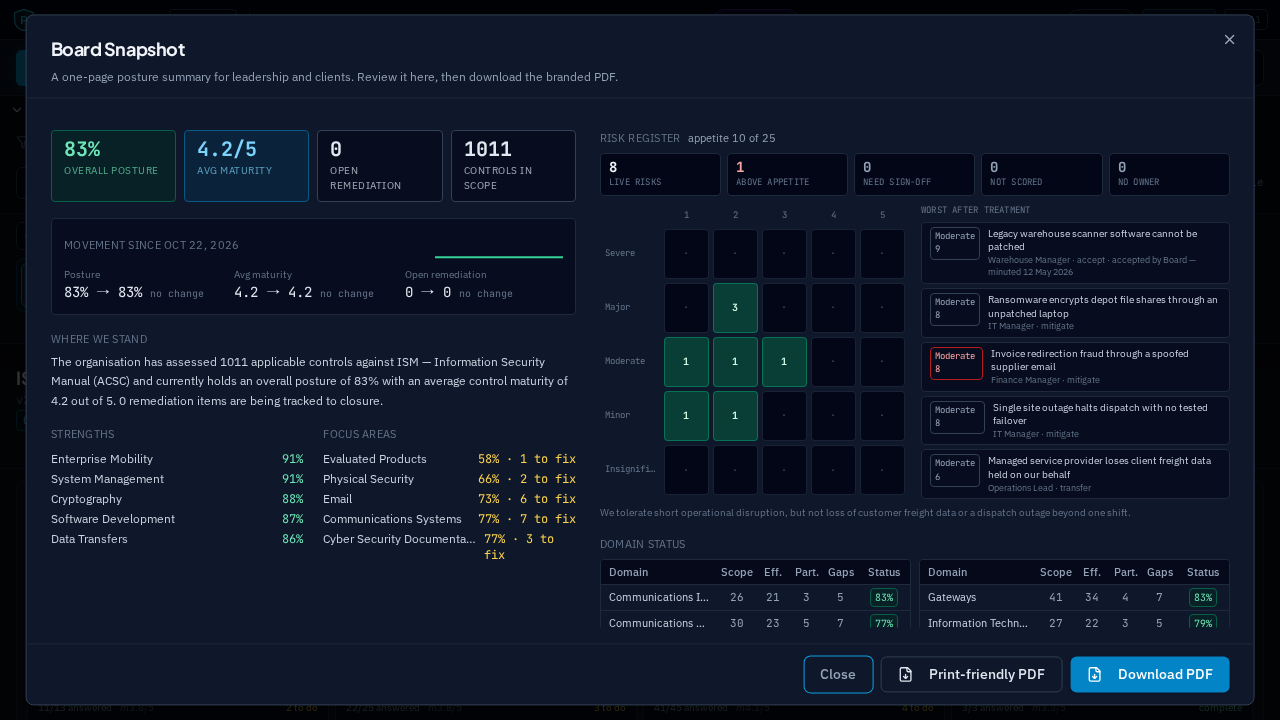
Board Snapshot — a single page for a board pack, with posture, maturity, trend, your strongest and weakest areas and what you already have in place.
Compliance Heatmap and Version Delta — see where you are strong or weak at a glance, and what changed when a framework was updated.
Export Controls (CSV) and Backup Assessments (JSON) — your data, in your hands.
Every PDF comes in two styles: the standard branded version, and a print-friendly version that swaps heavy dark panels for outlined ones — kinder to your printer and easier to read as a handout.
07Answering once across frameworks
Most frameworks ask the same questions in different words. The link icon on each control row opens the cross-mapping view: it shows the theme the control belongs to — multi-factor authentication, patching, logging, backups, governance and so on — and every equivalent control in the other frameworks on your plan, with how each one is currently rated.
Tick the ones you want, choose which fields to copy — effectiveness, maturity, your 'how we meet this' note, applicability — and apply. Your answer is written to each mapped control, and the copy is recorded in the audit log.
Report → Cross-Framework Coverage shows the whole picture: one row per theme, one column per framework, and how many of the mapped controls you have answered. It downloads as a PDF, in standard or print-friendly style, which is a useful way to show a client that the work you did for one standard already covers another.
Mappings are indicative and exist so you can reuse evidence — an assessor still decides what is in scope for their engagement.
08Evidence requests
Report → Evidence Requests is the list of what an auditor or client has asked you to produce. Raise a request with a short title, a description of exactly what is wanted, the control it relates to, an owner and a due date.
Each request moves through outstanding, submitted, then accepted or rejected. Attach the evidence files already held against that control to answer it, then mark it submitted; an admin or assessor accepts it, or sends it back for more. The counters at the top show how many are outstanding, submitted, accepted, rejected and overdue.
'Add the standard list' raises the usual request list for the framework in one go. For SOC 2 that is the twenty items a service auditor normally asks for — code of conduct, access reviews, MFA configuration, vulnerability scans, change samples, backup and restore evidence, vendor reviews and the rest.
09The risk register
Report → Risk Register is where your risks live. Add one with a short title describing the cause, the event and the consequence, an owner, a category, and how likely it is and how much damage it would do — each on a one to five scale. The score is the two multiplied, and the rating runs Low, Moderate, High, Severe, Extreme.
You score each risk twice: once as it stands with nothing done about it, and again as it will stand once your treatment is working. That second pair is the residual risk, and it is the number an auditor and a board actually care about.
Choose a treatment — mitigate it with controls, accept it with approval, transfer it to an insurer or provider, or avoid the activity altogether — and tick the controls that do the treating. That link is what ties your register to your assessment, so the Statement of Applicability and the risk register tell the same story.
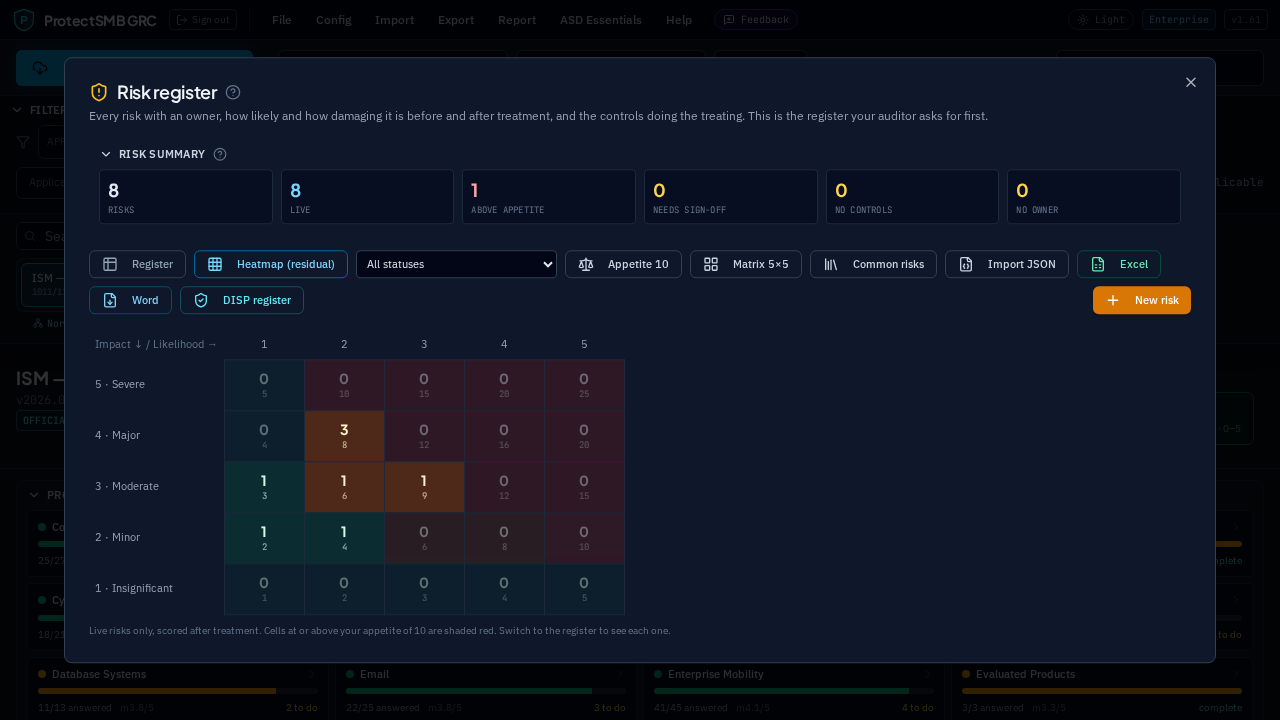
The heatmap view is the grid your own matrix describes, showing your live risks after treatment, shaded against your own appetite rather than a generic scale. The counters at the top flag anything above appetite, anything accepted without a sign-off, anything without a control and anything without an owner.
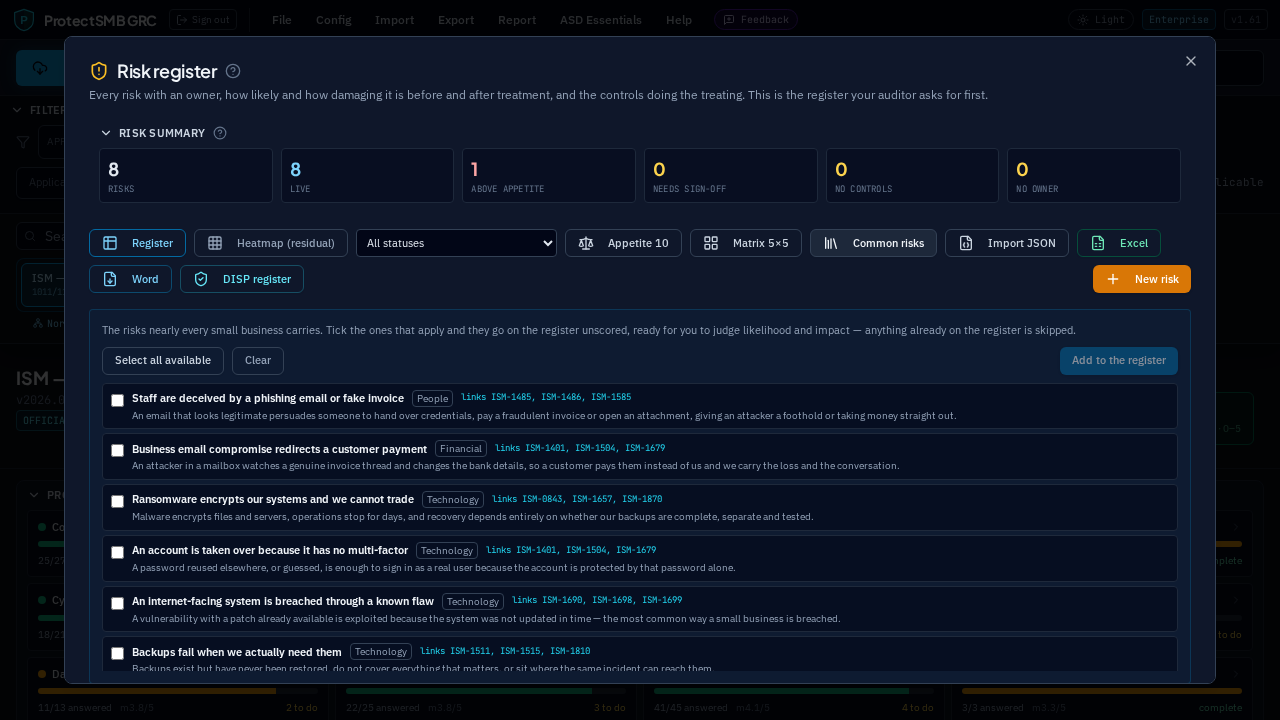
If you are starting from nothing, 'Common risks' saves you the blank page. It offers the risks nearly every small business carries — a staff member deceived by a phishing email, a customer payment redirected by someone sitting in a mailbox, ransomware stopping you trading, an account protected by a password alone, an internet-facing system breached through a flaw that already had a patch, backups that fail when you need them, too many administrators, a supplier breached with your data in it, a departed staff member who still has access, a lost laptop, a notifiable privacy breach, no tested incident plan, and a handful more.
Tick the ones that apply and they go on the register unscored, flagged 'not scored yet', because how likely a thing is and how much it would hurt is your judgement, not ours. Score them straight from the register — the four pickers on an unscored row set the inherent and residual pair without opening a form — and the flag clears itself. The wording is yours to edit, anything already on your register is skipped so you cannot double up, and on an ISM or Essential Eight workspace the controls that obviously treat each risk are linked for you.
The board snapshot pulls the register in beside the posture numbers: how many risks are live, how many sit above appetite, how many are waiting on a sign-off, how many are still unscored and how many have nobody's name against them — with your residual heatmap and the five worst risks after treatment.
Remove a risk you do not want with the bin icon on its row. It asks you to confirm first, and the deletion is recorded in the audit log along with the title.
10The guided demo
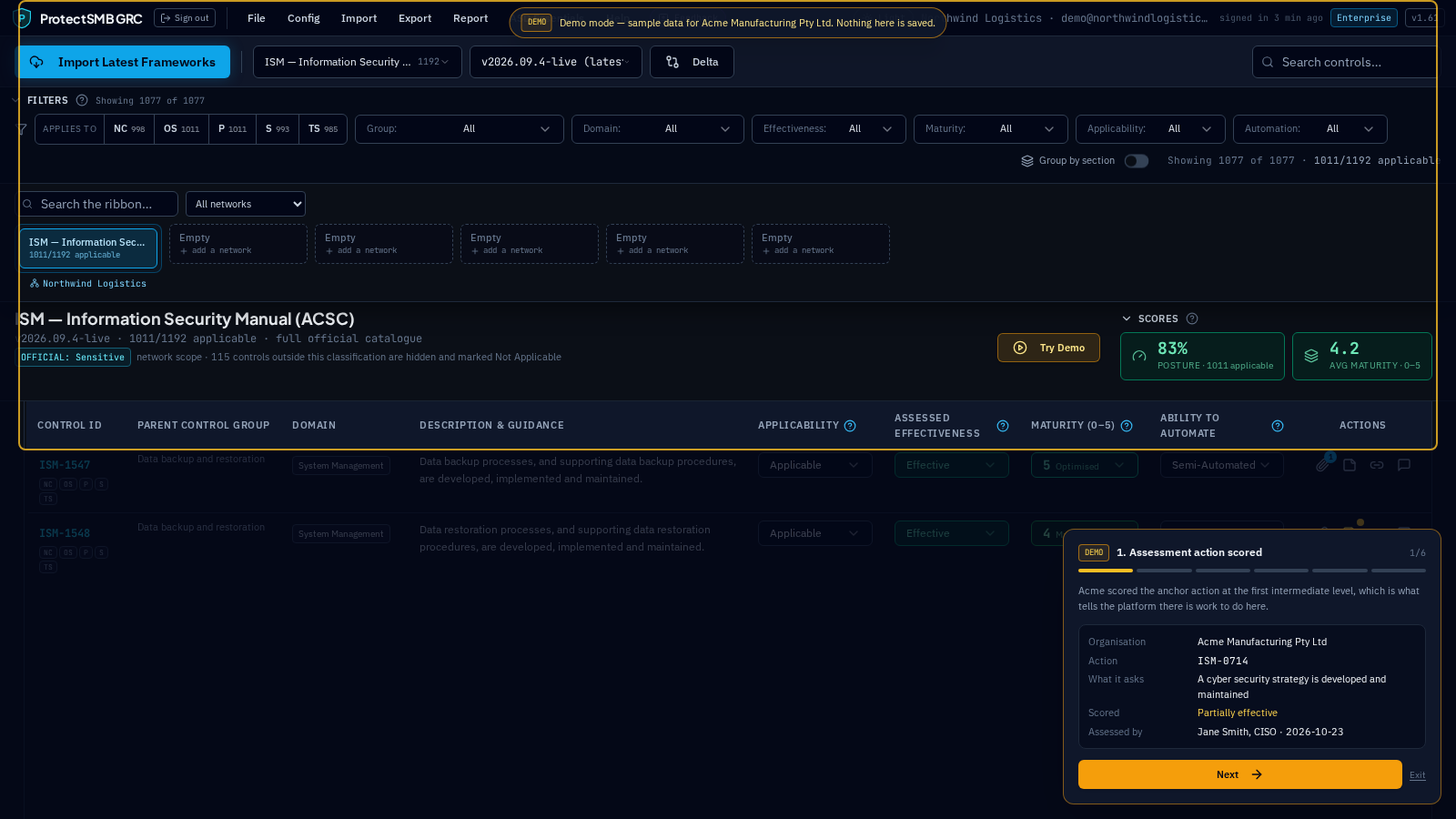
'Try Demo' on the dashboard, and on the ASD Essentials pane, walks you through one complete compliance lifecycle without touching your own workspace. Pick the framework you want to see it in and the walkthrough opens over the top of the app.
It follows a single control from one end to the other: a real action from that framework's catalogue, scored honestly rather than green; the evidence that supports that score and the note explaining what the evidence does not cover; the gap that follows; the risk that gap creates, scored before and after treatment; the remediation task raised against it with an owner and a due date; and finally the board report the whole chain lands in.
Each step highlights the part of the screen it is describing, so you can see where the work actually happens rather than reading about it. Move with Next and Back, or close it whenever you like.
Everything in it is sample data for a fictional manufacturer — it is read-only, it is kept entirely separate from your assessment, and it is cleared when you leave. Nothing you see in the demo is counted in your posture, your register or your reports.
The same walkthrough is on the public website as a captioned clip, under 'Watch the demo', if you want to show somebody what the work looks like before they have an account.
11Telling us what you think
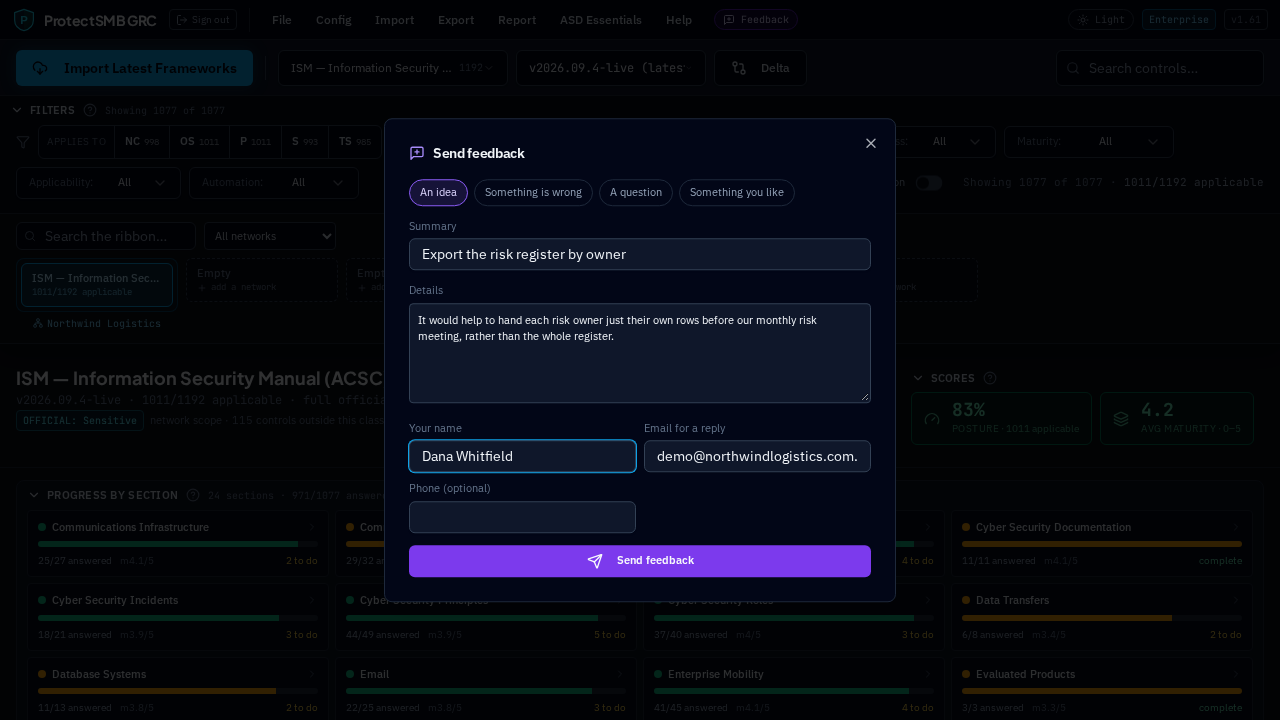
The Feedback button sits beside Help at the top of the screen, on every page. Use it for an idea, a problem, a question or praise — the four are kept apart so the ideas do not drown in the bug reports.
Give it a one-line summary and as much detail as you like. Your name and email are filled in from your account and your workspace is recorded with it, so you do not have to explain who you are; add a phone number if you would rather be called back.
You get a reference number the moment you send it. Quote that if you follow it up — it is the same reference we see against your entry.
When we reply you will get an email with your original message quoted underneath, from the same reference, and you can simply reply to it.
Everything submitted lands in a register we work through, and each entry carries a status as we deal with it: new, reviewing, planned, done or declined.
12Importing a risk framework
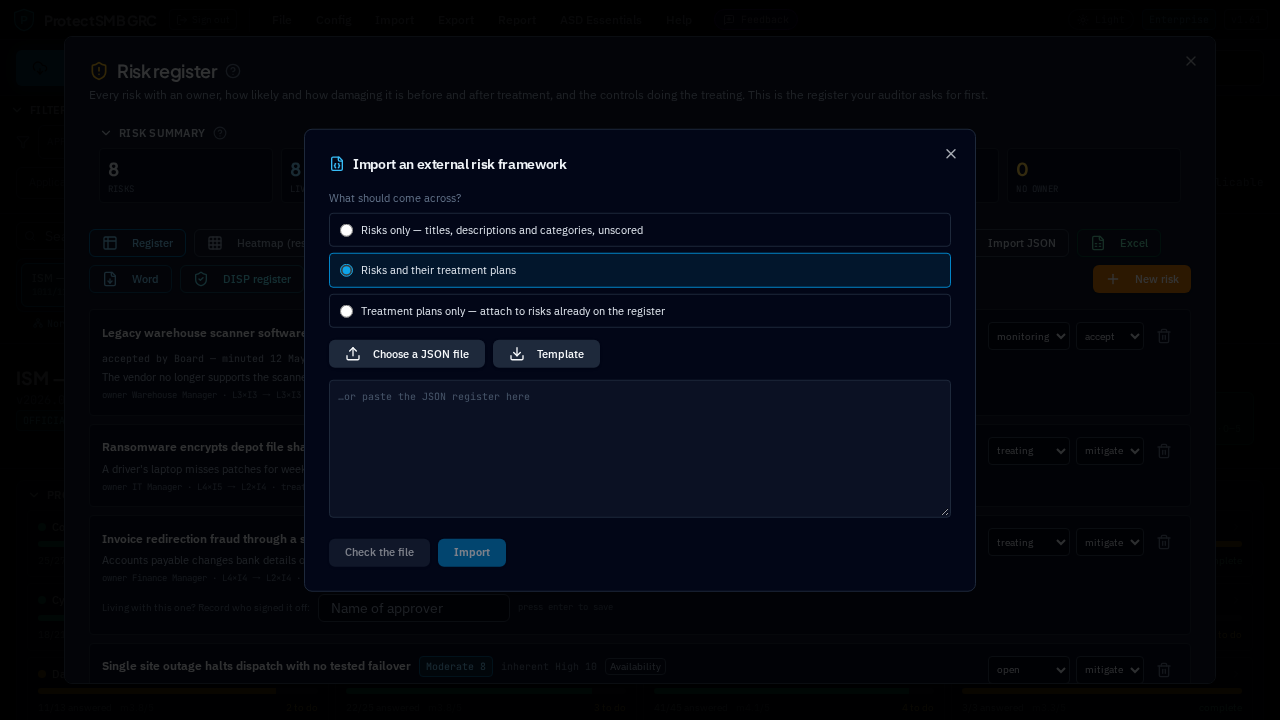
Report → Risk Register → 'Import JSON' brings an external risk framework into your register — your insurer's risk schedule, a parent company's register, a consultant's workbook or anything else already written down.
Choose how it should arrive: add everything as new risks, or match what is already there on title and update it rather than duplicating it. 'Download template' gives you the exact shape the file needs, so a spreadsheet can be saved out to match it.
Paste the JSON or pick the file, then 'Check' before anything is written. The preview tells you how many risks were read, how many are new, how many would update an existing risk and anything it could not understand, line by line. Only then does 'Import' write to your register.
Imported risks behave exactly like the ones you typed: they can be scored, treated, linked to controls and exported, and every import is recorded in the audit log.
13The DISP risk register
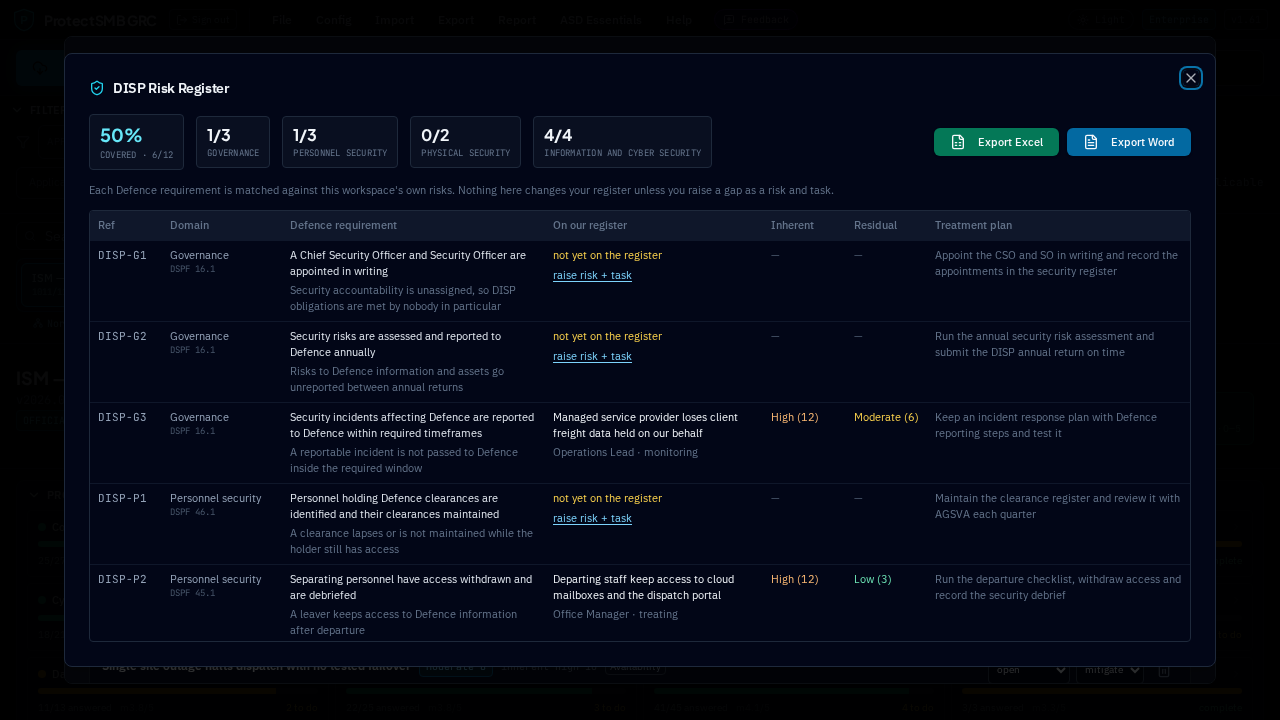
Defence Industry Security Programme membership asks you to hold a risk register that covers particular ground. Report → Risk Register → 'DISP register' shows your own register measured against that expectation rather than a generic one.
Each DISP risk area is listed with the reference, what it asks for, and which of your risks already answers it. Anything with nothing against it is flagged as a gap.
'Raise' on a gap writes the risk and its remediation task for you, worded for that area and linked back to the reference, so the register fills itself in as you work through the list rather than leaving you to invent the wording.
Export the whole thing as a spreadsheet or a Word document — the spreadsheet for your own working, the Word version for the pack you hand to Defence.
14Exporting the risk register
The risk register exports in full, not as a summary. The spreadsheet gives you every risk with its owner, category, inherent and residual scores, rating, treatment, linked controls, acceptance sign-off and review date — one row each, ready to sort and filter.
The Word version is the same register laid out as a document, branded and dated, for a board pack or an assessor who wants it on paper.
Both honour whatever you are filtering by at the time, so you can export only what is above appetite, only one category or only one owner's risks.
15For MSPs: managing client networks admins
A managed service provider gets its own account type and its own console at /msp. It keeps its own workspace and its own compliance work, and separately manages every client network it has been invited into.
The licence is $30,000 a year RRP with a 20% discount by default, so $24,000 payable. It is invoiced — there is no card checkout for an MSP account. Ten client network slots are included, and more come in packs of five at $5,000 flat per pack per year, which the discount does not touch. We record a pack against your account and the slots are live immediately.
The console lists every client with their Essential Eight maturity, when they were last assessed, what is outstanding in gaps and open tasks, whether you are operating on their behalf or assisting while they self-manage, the invitation status, and a button to enter the network. Alongside it: slots purchased, in use and remaining. At one slot left the console says so and offers to put you in touch to buy another pack; at zero, linking another client is refused rather than quietly allowed.
Entering a client switches the whole interface into their context, with a banner across the top reading 'Managing [client] — [your organisation] via ProtectSMB GRC' and one click back out. While you are inside, no other client's data is reachable at all, and every action is recorded in the audit trail against both your name and the client organisation, so there is never a question of who did what, where.
A client is always in control. Their administrator raises the invitation in the first place, from Organisation Profile → MSP access: they type your email domain, choose whether you get full access or read-only, optionally set an expiry date, and send it. Nothing reaches you until one of their own administrators clicks the separate approval email — a deliberate second step so a single mistaken request grants nothing. Once they have approved it, the invitation appears in your console to accept or decline. Accepting is what consumes a slot. Either side can revoke at any time, which ends live sessions in that workspace immediately and frees the slot back to you; an expiry date does the same overnight on the day it passes.
Your own people start with no access to any client at all. An administrator of the MSP account invites colleagues — only addresses on your registered domain can join — and then sets each person's permission on each client: full access, read-only, or none. A permission you grant is sent to the client's administrators to approve before it works, and read-only is enforced for real: that person can see everything in the client's workspace and change nothing.
Portfolio reports come out as Word documents or PDFs: a compliance summary across every client you manage, a one-page health report for any single client, and an activity report covering everything your people did across all clients between two dates.
16For the platform owner: channel, partners and billing admins
Channel partners live under Channel partners on the admin console, split into MSP and Reseller tabs. A reseller buys licences at an agreed discount and on-sells them, with no access to any client workspace at all; their own console at /reseller shows only what they have sold — client name, plan, subscription status and renewal date — plus their current discount rate and what is renewing inside ninety days. An MSP both sells and manages, which is covered in the MSP section above.
Open any partner to see their commercials: the annual net revenue attributed to them, how many live workspaces they hold, their own subscription status and renewal date, every workspace sold through them, and for an MSP their slot entitlement, slots in use and the whole slot pack purchase history. Discount rates are changed here — anywhere between 0% and 50%, from a date you choose, with a reason that is required and kept. Every change stays on the record with the administrator who made it, and the partner's own account picks the new rate up immediately. Slot packs are recorded from the same panel: choose the number of packs, the amount is priced automatically at $5,000 flat each with no discount, add the payment reference and the date, and the slots are live the moment you save.
Deal registration lets a partner claim a prospect before the sale. From their own console they register the prospect's email domain with the organisation name, a contact, the expected tier and a note, and we hold that domain for them for ninety days. When somebody from that domain signs up, the new workspace is attributed to that partner automatically — the channel and their details are stamped on it exactly as you would set them by hand, and the registration shows as converted. A domain can only be held by one partner at a time, and a domain that already has a workspace cannot be registered at all. Every registration appears under Channel partners, where you can reject one, reinstate it, or hold it open longer if a deal is taking its time.
Partner statements are available to both sides. A partner downloads their own statement as a PDF or a Word document from their console: their account and agreed discount, every client with tier, channel, subscription status, annual fee, discount, net payable and renewal date, the totals, what is renewing inside ninety days, and for an MSP their slot entitlement and pack purchases. The copy you pull from the partner panel is the same document with invoice references and payment status added.
Invoice billing is a separate tab covering every Tier 3 and above workspace, because those are invoiced by hand rather than paid by card. The register shows the workspace, its channel, tier, annual fee, the discount applied, the net payable, the invoice reference, the due date, the payment status and the days until renewal, with totals for what is pending, paid and overdue and counters for renewals inside 30, 60 and 90 days. Invoices themselves are raised in your own accounting system — the platform records the reference, not a document. Per workspace you can record an invoice, mark it paid with the date it landed and a note, flag it overdue with an internal note, and renew the subscription by twelve months once payment is confirmed. Every one of those actions is written to the audit trail with your identity and the time. Reminder emails still go to the client contact and our own mailbox 60 and 30 days before renewal.
Underneath all of it, every workspace records how its licence was sold. Direct means the client bought straight from us. Reseller means a partner sold the licence and the client runs it themselves. MSP means a partner sold it and manages it on the client's behalf. The channel shows as a badge on the workspace row and can be changed from the Commercial panel, which also holds the money: market segment, annual licence fee, discount rate, the net payable that falls out of the two, the subscription and renewal dates, how it is billed, the invoice reference and the payment state. Where an agreed net amount is entered it beats the list price, and the revenue forecast follows what the client actually pays. A partner cannot be deleted while workspaces still point at them; move those first. Tiers 1 and 2 are self-serve and can pay by card; Tier 3 and above — including Tier 5, the MSP licence — are invoiced, and card checkout is refused for them with an explanation rather than quietly offered.
17For resellers and MSPs: your own console admins
If you sell our licences you get a console of your own. A reseller's sits at /reseller and an MSP's at /msp, and both carry the same two commercial tools: deal registration and your statement.
A reseller's console lists every licence you have sold — the client's name, their plan, whether their subscription is paid or in trial, and the renewal date — beside your current discount rate, the number of licences sold and how many renew inside ninety days. That is deliberately all it shows. A reseller sells the licence; the client runs it. You have no access to their assessments, evidence, risks or reports at any point. If you also want to work inside a client's workspace, that is the MSP account type, and the client has to invite you to it.
Deal registration protects the work you do before a sale. Register the prospect's email domain with their organisation name, a contact, the tier you expect and a note, and we hold that domain for you for ninety days. When somebody from that domain signs up, their new workspace is attributed to you automatically — you do not have to tell us, claim it or prove anything later, and the registration turns to converted in your own list. A domain can only be held by one partner at a time, so register early; a domain that already has a workspace cannot be registered at all, and we will tell you so rather than take the claim. If a deal is running long, ask us and we will hold it open.
Your statement is a PDF or a Word document, downloaded from your console whenever you want it: your account and the discount rate we have agreed, then every client you hold with their tier, channel, subscription status, annual fee, the discount applied, the net payable and the renewal date, the totals, a list of what renews inside ninety days, and for an MSP your client network slots and every pack you have bought. It is meant to be the document you reconcile against, so it reads the same way our own copy does.
Only an administrator of the partner account can register a deal or download a statement, because both carry commercial figures.
18For the platform owner: performance monitoring admins
Every request the application serves is timed and recorded, and every error is captured with its stack trace, the endpoint it came from and who was signed in at the time. Both are kept for ninety days and then expire themselves. The recording happens after the response has gone back, so nothing anybody does is made slower by being measured.
The Performance tab in the administration console — also at /admin/performance — says whether the system is healthy, degraded or critical and why, the uptime over the last thirty days, how many requests have been served over a day, a week and a month, and the current error rate. Underneath: average, median and 95th percentile response times, the ten slowest endpoints, a thirty-day trend, errors grouped by type with a searchable log and full stack traces, and who is actually using the platform.
Alerts run every five minutes against the five minutes just gone. If more than 5% of requests are failing, if the average response time passes two seconds, or if the database stops answering, the owner address is emailed. A critical error is emailed the moment it happens. A thirty-minute cooldown stops one bad window becoming twenty emails, and every alert is written to the audit log whether or not the email got through.
The thresholds, the cooldown and how much traffic to record are all options under 'Options' on that tab. A busy instance can sample ordinary traffic and still keep every failure and every slow request, which are never sampled away.
For external uptime monitoring, point your monitor at /api/health. It needs no sign-in and returns the application status, whether the database is answering and how long that took, the version and a timestamp.
19For admins: your workspace activity admins
Administrators can see how their own workspace is being used at /admin/organisation/performance. It lists everyone in the workspace with the last time they signed in and whether multi-factor is switched on, so a dormant account or an unprotected one is obvious at a glance.
Underneath that: how complete each of your assessments is, which parts of the app your people actually use, and every report and document pack generated, by whom and when. None of it leaves your workspace — you see your own activity and nobody else's.
20For admins: choosing your risk matrix admins
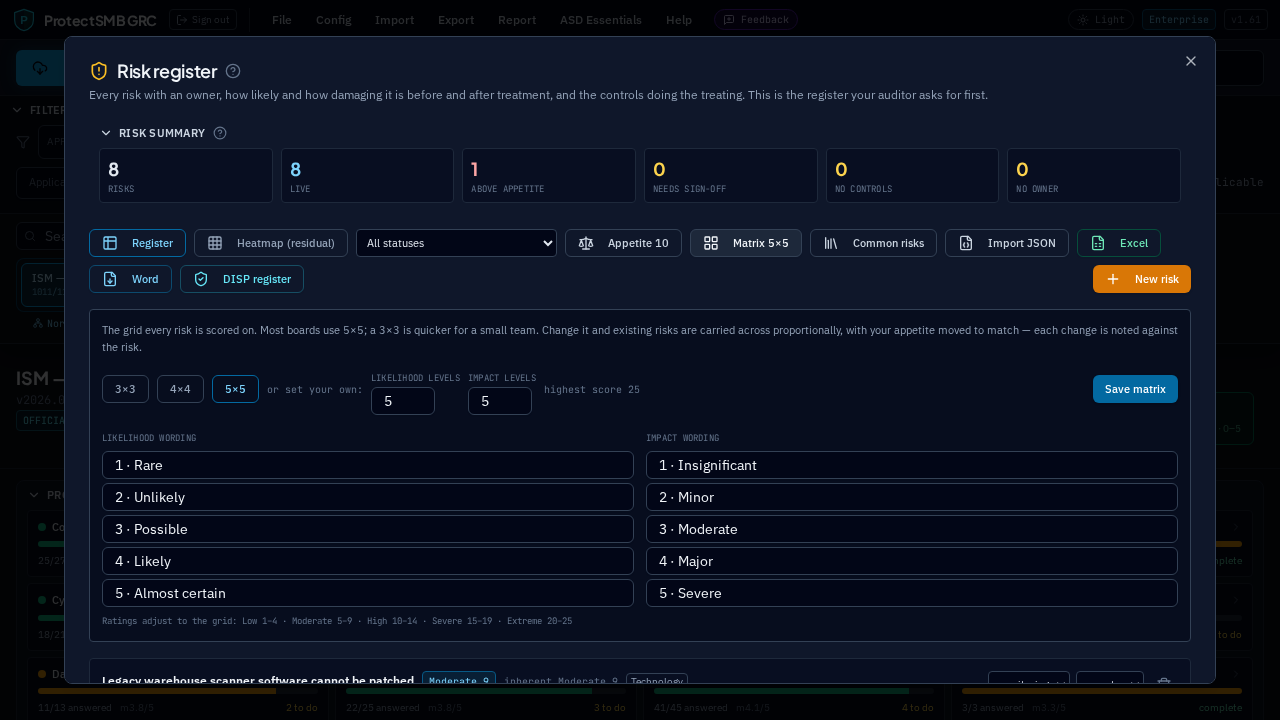
Not every business scores risk the same way. A five by five is the default and what most boards and auditors expect, but a three by three is quicker for a small team with a short register, and some organisations run something of their own.
Administrators set this with the 'Matrix' button in Report → Risk Register. Pick three by three, four by four or five by five, or set your own number of likelihood and impact levels — anything from two to ten of each, and they do not have to match. You can write your own wording for every level as well, so the scale reads in your language rather than ours: 'once a decade' through to 'most months', 'an annoyance' through to 'we stop trading'.
Changing the grid does not throw your work away. Every risk already on the register is carried across proportionally — a 4 on a five point scale becomes a 2 on a three point one — scores and ratings are recalculated, and each risk records the change in its own history so the move is visible rather than silent. Your appetite threshold and any category overrides move with it too, keeping the same relative position.
The rating bands follow the grid. Low, Moderate, High, Severe and Extreme are worked out as a share of the highest score your matrix can produce, so a five by five keeps the familiar bands exactly as they were, and a three by three gets sensible equivalents rather than everything crowding into Low. The panel lists the bands for the grid you have chosen.
21Risk appetite and sign-off
Risk appetite is the score at which a risk becomes more than your board is willing to live with. Open Report → Risk Register and use the 'Appetite' button to set it. The default is 10 on the standard five by five, which is a moderate position: a likely event with a moderate consequence sits right on the line. If your administrator has changed the matrix, the threshold is bounded by that grid instead.
You can override the threshold for particular categories. Most businesses tolerate less in some areas than others — client data or fraud might sit at 6 while general technology disruption stays at 10. Add a category with its own number and risks in that category are judged against it.
Write the appetite statement in plain words as well: 'we tolerate short operational disruption, but not loss of customer data'. It is what an auditor reads to decide whether your register is being used or just maintained.
Once an appetite is set, three things change. The heatmap shades cells at or above it in red, so the grid reflects your tolerance. The register flags each risk above appetite with its threshold. And the readiness score measures you against your own number instead of a hard-coded 'High or worse'.
Accepting a risk that sits above appetite needs a name against it. The register will not let you set the treatment to Accept until you record who signed it off, and the date is stamped automatically. That is the record an auditor looks for when you have decided to live with something.
22Certification readiness
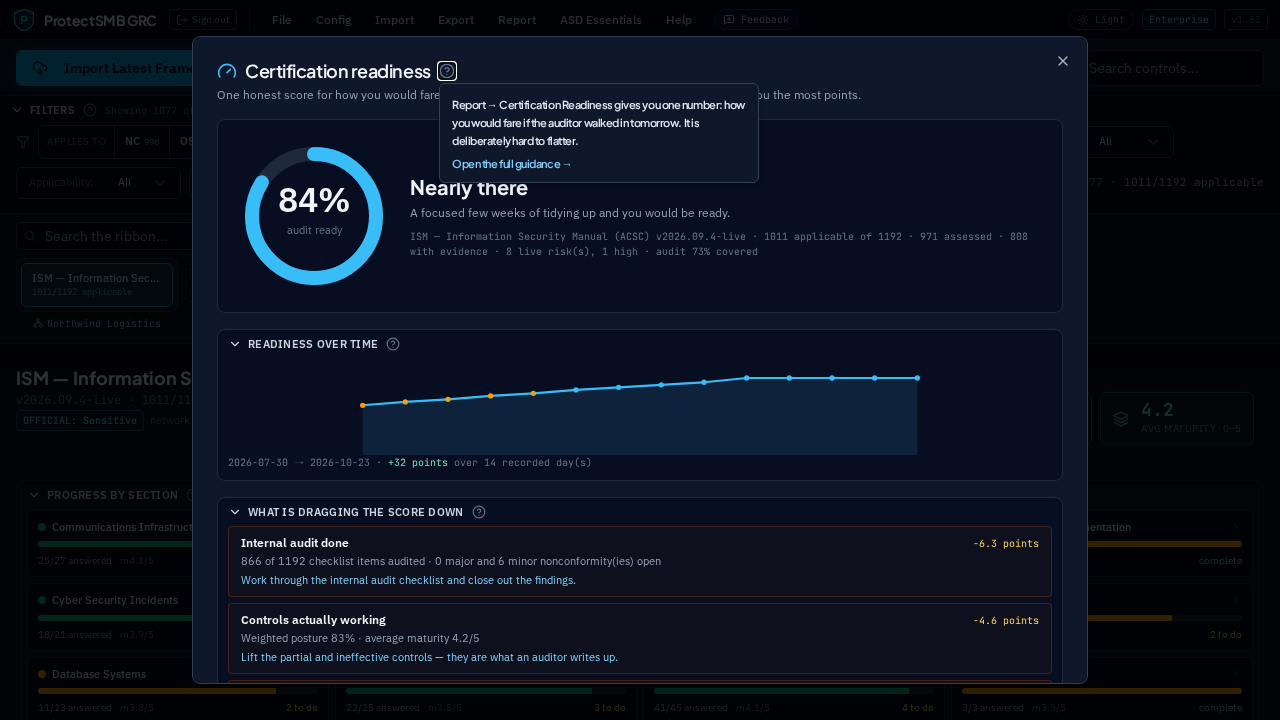
Report → Certification Readiness gives you one number: how you would fare if the auditor walked in tomorrow. It is deliberately hard to flatter.
The score is built from seven things, weighted the way an auditor weighs them: every control having an applicability decision (10), controls actually assessed (18), controls genuinely working (27), evidence on file (15), the Statement of Applicability written (10), the health of your risk register (10) and your internal audit (10).
Underneath the dial, 'What is dragging the score down' lists the few things costing you the most points, with the specific action that recovers them. Below that, every component is shown with the points earned out of the points available.
An open major nonconformity is called out separately: no certification body will recommend you while one is outstanding, so the score alone is not the whole picture.
The score is recorded once a day, so the trend chart shows real progress over weeks rather than a claim. Open the page on a few different days and the line appears.
23Internal audit
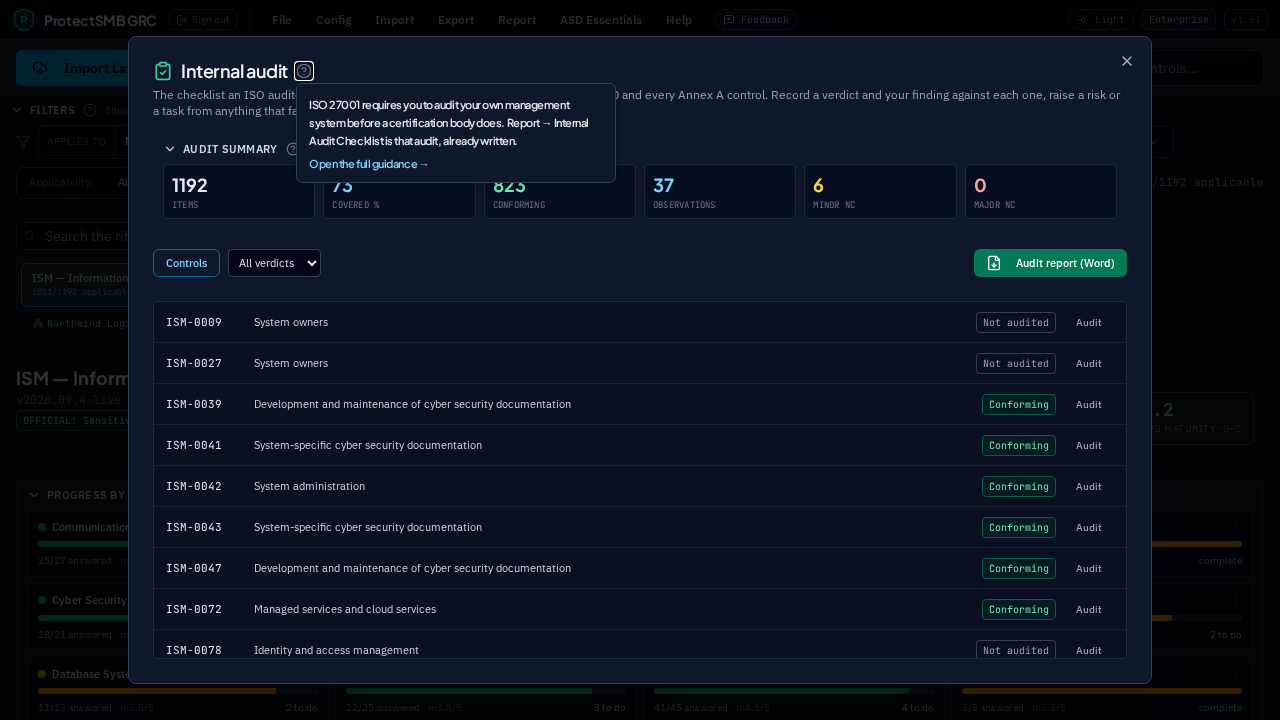
ISO 27001 requires you to audit your own management system before a certification body does. Report → Internal Audit Checklist is that audit, already written.
For ISO 27001 there are two tabs. 'Clauses 4–10' is the management system audit — context, leadership, planning, risk assessment and treatment, resources, competence, documented information, operation, monitoring, internal audit, management review and corrective action — thirty items, each with the question an auditor will ask and a note on what good looks like. 'Annex A controls' is the same exercise against all 93 controls. For the other frameworks you get the control checklist only.
Against each item record a verdict: conforming, an observation, a minor nonconformity, a major nonconformity, or not applicable. Write the finding, note the evidence you were shown, and give any corrective action an owner and a due date.
From anything marked as an observation or a nonconformity you can raise a risk onto the register or a task into the remediation tracker in one click, so findings do not die in a document.
'Audit report (Word)' downloads the completed audit as a branded report: coverage, the counts by verdict, every finding with the evidence seen and the owner, grouped by section — and a plain warning at the top while any major nonconformity is open.
24The audit programme
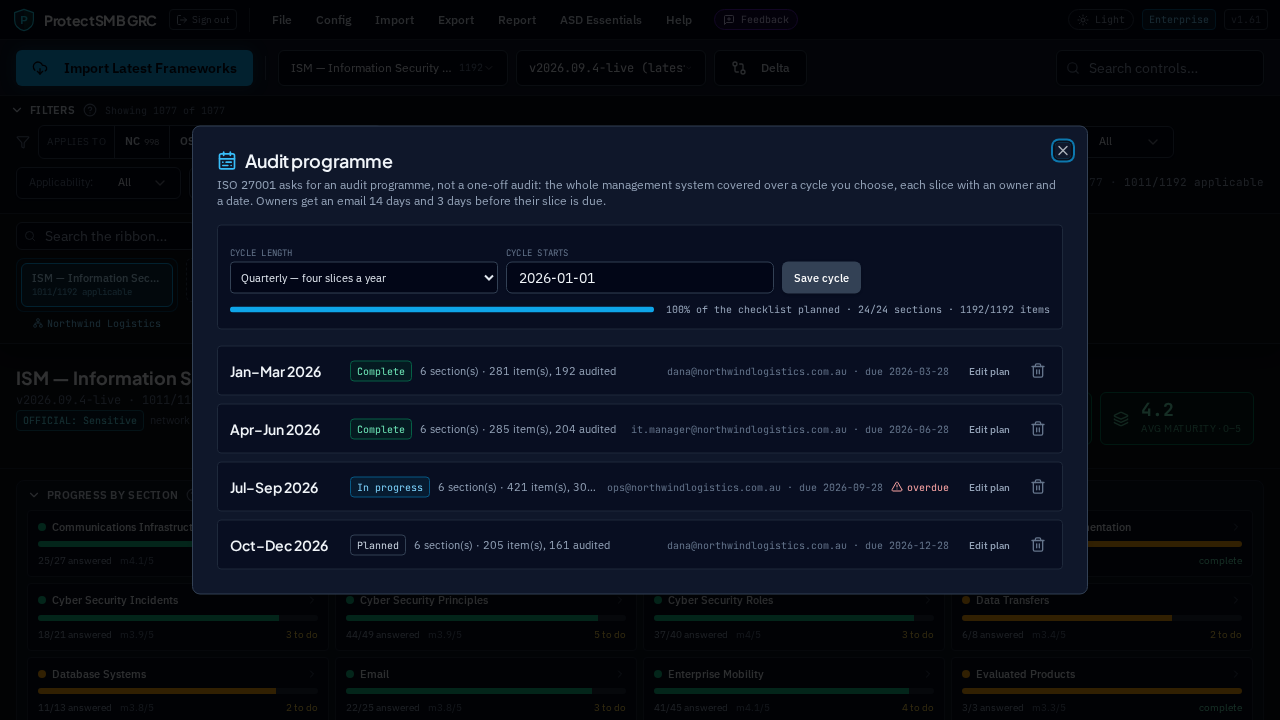
Clause 9.2 asks for an audit programme, not a single audit: the whole management system covered over a defined cycle, with the frequency, the responsibilities and the reporting settled in advance. Report → Audit Programme is where you set that out.
Pick the cycle that suits the size of your business — monthly gives you twelve small slices a year, quarterly four, half-yearly two — and the date the cycle starts. The periods are generated for you.
For each period, tick the sections of the checklist that will be audited then, name the auditor by email and set the date it is due. The coverage bar shows how much of the checklist is accounted for across the whole cycle, and anything not audited anywhere is listed plainly underneath — that gap is the first thing a certification body will find.
Each period carries a status: planned, in progress or complete, and anything past its date with work still outstanding is flagged overdue.
The owner of each slice is emailed 14 days and 3 days before it is due, with a link straight into the checklist. You do not have to chase it.
25The documentation pack
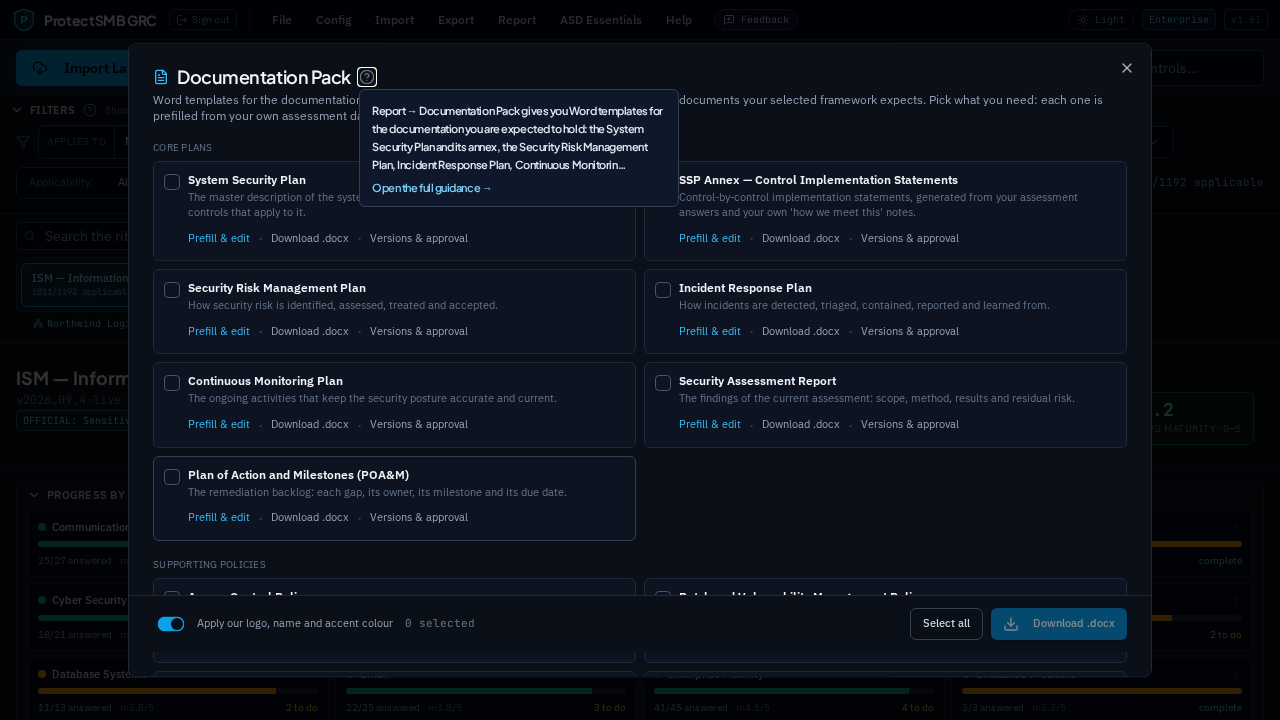
Report → Documentation Pack gives you Word templates for the documentation you are expected to hold: the System Security Plan and its annex, the Security Risk Management Plan, Incident Response Plan, Continuous Monitoring Plan, Security Assessment Report and POA&M, plus supporting policies for access control, patching, backups, logging, acceptable use, data breach response, suppliers, media handling, remote working and awareness training.
On top of that shared set you also get documents tailored to the framework you are working in, and the list changes with your framework selection. Essential Eight adds a maturity implementation plan and an operating procedure for each of the eight mitigation strategies. ISO 27001 adds the ISMS scope and context, the Statement of Applicability, the risk treatment plan and a management review record. NIST CSF adds current and target profiles and an action plan. SOC 2 adds the system description, the Trust Services Criteria control matrix and a readiness assessment.
Tick the documents you need and download a single .docx or the whole selection as a zip. Each document is prefilled from your own data — your organisation and contact details, the framework and version, your posture and maturity, your results by domain, your gaps and your 'how we meet this' notes. Anything the platform cannot know is marked [To be confirmed] so it is obvious what still needs you.
'Prefill & edit' opens each section for editing in the app. Save it and your wording is kept for the next download. 'Improve with AI' rewrites one section at a time using your own connected AI provider — each rewrite is a separate call charged to your key, so the cost rises with the number and length of the sections you improve.
Branding is a choice: apply your logo, name and accent colour to the cover page, or download plain documents.
26Versions, approval and review dates
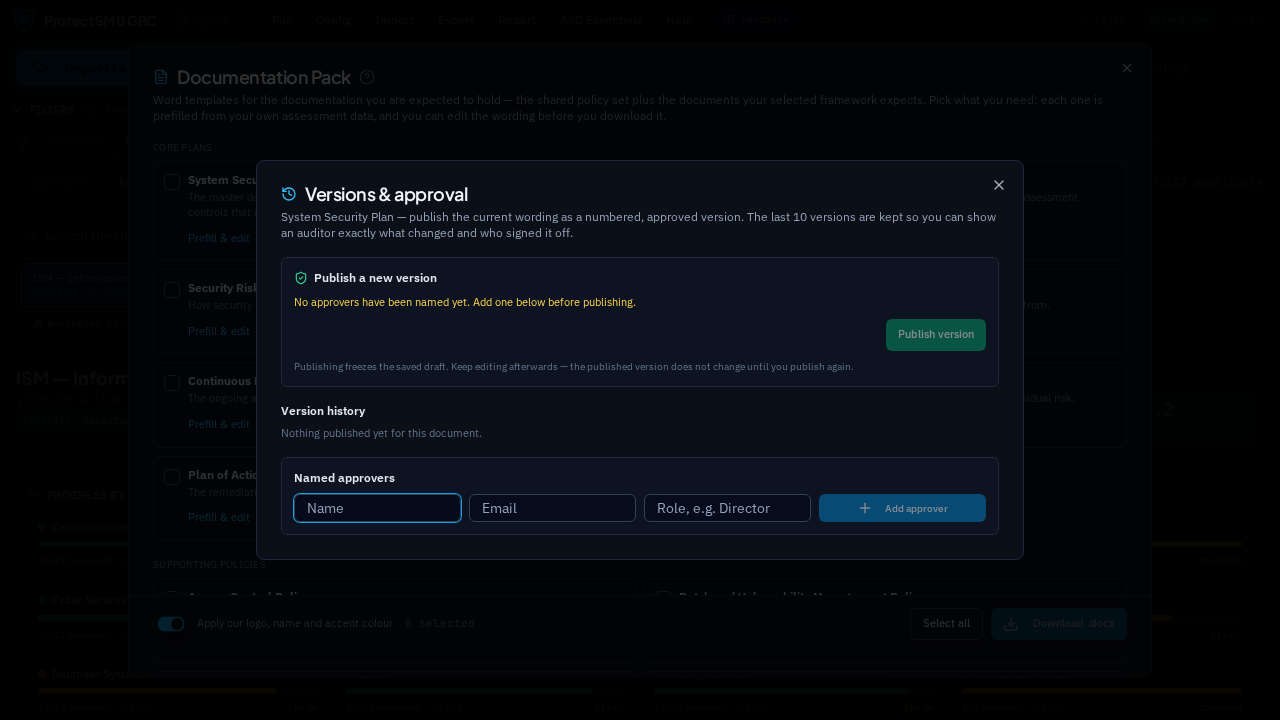
Auditors ask two questions about a document: who approved it, and what changed. 'Versions & approval' answers both.
Publish freezes the saved wording as a numbered version, recorded against a named approver with the date and a review period — annually by default, or anything from three months to three years.
The last ten versions are kept for each document, and each one can be downloaded as a .docx exactly as it was approved.
Compare any two versions to see, line by line, what wording was added or removed in each section.
As the next review date approaches, the document shows 'review due in N days', and 'review overdue' once it passes.
Admins keep the list of named approvers (name, email and role). Only someone on that list can be recorded as having approved a document.
27Working with an assessor
Report → Share with Assessor creates a read-only link to your assessment, so an external assessor or IRAP practitioner can review your answers, your notes and your evidence without an account in your workspace. You choose when it expires, and you can revoke it at any time. Every view is recorded in the audit log.
28AI implementation advice
Select a control and choose 'Get Implementation Advice' for practical, platform-specific guidance on closing that gap — including what you already told us you have in place, so the advice builds on it rather than repeating it.
AI is bring-your-own-key: an admin connects your organisation's own OpenAI, Anthropic or Google provider under Config → Preferences → AI connector. The key is stored encrypted, is verified against the provider before it is saved, and all usage is billed to you by your provider. If no provider is connected, every AI feature is simply switched off — nothing else in the product depends on it.
29For admins: users and workspace settings admins
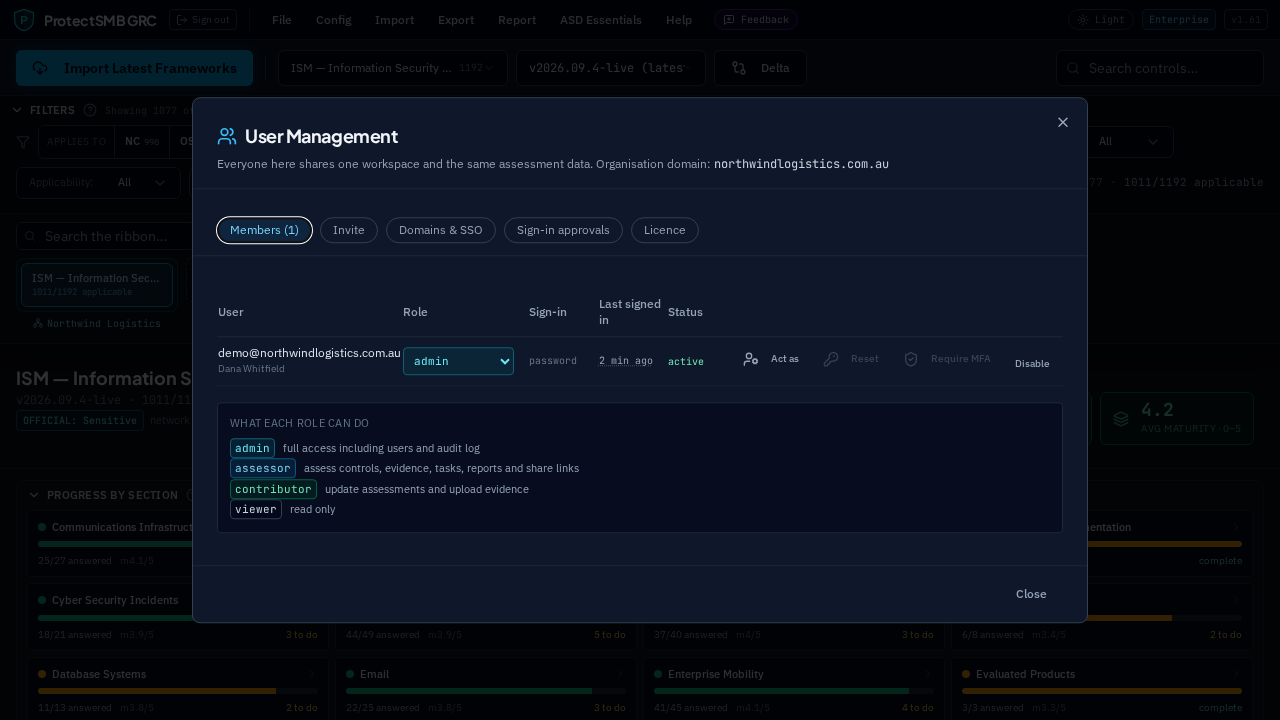
Config → User Management is where you run the workspace:
Invite users by email and give them a role. Invitations are limited to your own email domain unless you allow another one.
Suspend or re-enable an account, or force a password reset — the user is signed out everywhere and must set a new password.
Require multi-factor authentication for the whole workspace, with an exemption for an individual if you genuinely need one.
Require two-factor of one person instead of everyone. Each member row in Config → User Management has a 'Require MFA' button: turn it on and that account must use an authenticator even when the workspace-wide policy is off — useful for the people who hold the keys, before you tighten it on everybody. The row shows which of the three states applies (required for this person, required by the workspace, or exempt) and whether they have enrolled yet. Requiring it of somebody who already has an authenticator clears it and signs them out everywhere, so they enrol again at their next sign-in; you are asked to confirm first. The two controls cannot contradict each other — an exempt account cannot also be required — and the message tells you which to change.
Require approval for sign-ins from new networks. With this on (Config → Preferences → Security), a sign-in from an IP range the account has never used is refused outright and an email goes to the workspace admins with the address, the approximate location, the device and the time. Nothing is let through until somebody approves it; approving trusts that whole range (a /24 for IPv4) so a home or office network keeps working afterwards, and requests expire after 24 hours. Put your office ranges in the always-allowed list and staff there are never challenged. The first network an account ever uses is trusted automatically, so switching the policy on cannot lock anybody out.
Config → User Management → Sign-in approvals shows what is waiting, lets you approve or deny it there instead of from the email, lists every network currently trusted and lets you withdraw one — the next sign-in from it then needs approval again.
See the last five sign-ins for anybody in the workspace: click the time in the 'Last signed in' column for the exact stamp, the method, the device and roughly where from. Everyone can see their own history from the header. Administrator access sessions never appear here — they are recorded in the audit log instead.
Turn on Google single sign-on, or automate joiners and leavers with SCIM: mint a token and point Okta or Microsoft Entra ID at the SCIM base URL. A group named after a role — admin, assessor, contributor or viewer — sets that role on its members, and the group preview shows you exactly what each one will grant before provisioning runs.
Config → Preferences covers your organisation details, security contact, date format and timezone, and Config → Branding sets the logo and accent colour used on your reports and documents. Report → Audit Log holds the full history of who did what, and when.
30Essential Eight by maturity level
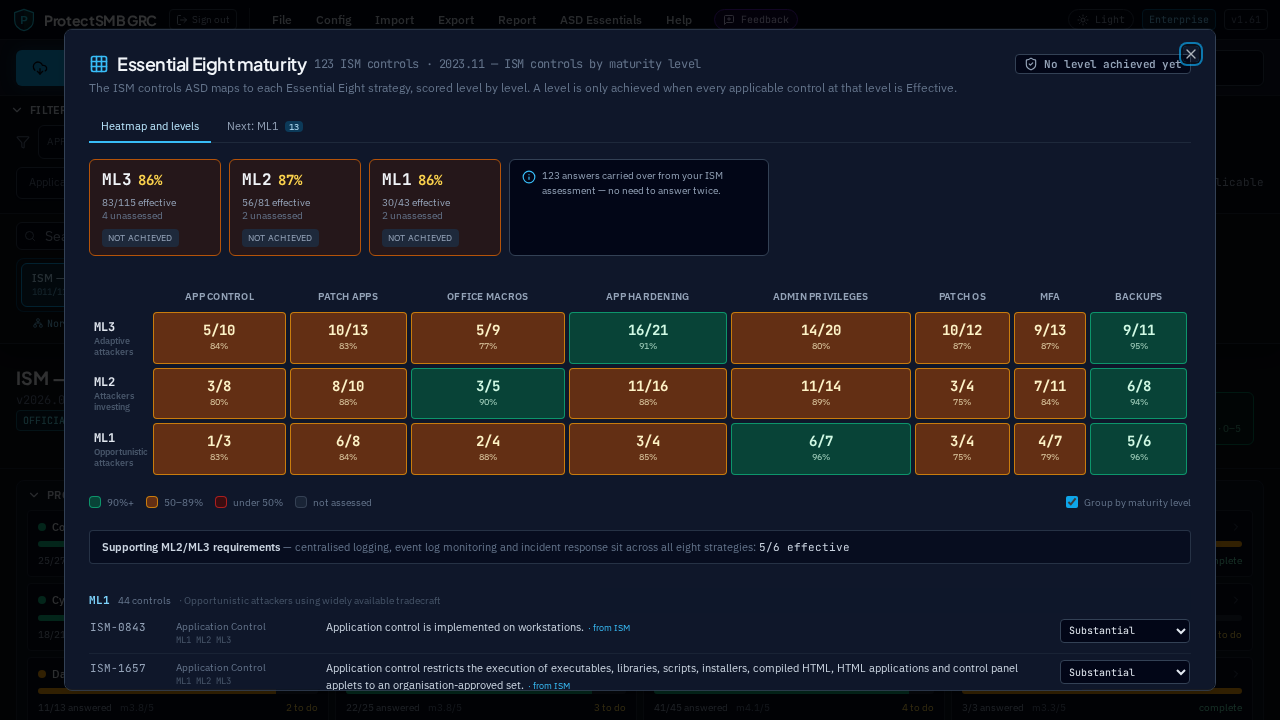
The Essential Eight is graded in levels, not percentages, so it has a view of its own. Open Report → Essential Eight Maturity when you are working in the Essential Eight or the ISM.
What you are looking at is the 123 ISM controls that ASD itself maps to the Eight, taken from the Essential Eight maturity model baseline. Each one is tagged with the strategy it belongs to and the levels it applies at, so you assess real ISM controls rather than eight vague headings.
The grid has one column per strategy — application control, patching applications, Office macros, application hardening, administrative privileges, patching operating systems, multi-factor authentication and backups — and three rows: ML3 on top, ML2 in the middle, ML1 at the bottom. Each cell shows how many of its applicable controls are effective, and is coloured on that: green at 90% and above, amber from 50 to 89, red below that, grey when nothing has been assessed yet. A control counts at every level it applies at, so ML3 includes the work you did for ML1.
Above the grid, each level carries its own score and says whether the level is achieved. ACSC grades a level all or nothing — every applicable control at that level has to be effective — so the percentage is your progress towards it, and the badge beside it is the honest answer. The level shown at the top right is the one you could actually claim, which only moves up once every level below it is complete.
Click any cell to see just the controls behind that strategy at that level, and set their effectiveness there and then; 'Show all' puts the full list back. Leave 'Group by maturity level' ticked and the list is split into ML1, ML2 and ML3 so you can finish one level before starting the next — which is the order ASD expects you to work in.
Centralised logging, event log monitoring and incident response are genuine ML2 and ML3 requirements but are not one of the eight strategies, so they sit in their own line under the grid rather than being squeezed into a column.
If you already assess the ISM itself, your answers carry straight across: wherever the Essential Eight view has not been answered and the same ISM control has, that answer is used and marked 'from ISM'. Answer it directly here and your direct answer wins. The same grid appears in the board snapshot — on screen as well as in the downloaded report — so the board sees the levels rather than a single number.
The second tab, 'Next: ML1' (or whichever level you are chasing), is the working checklist. It takes the lowest level you have not achieved and lists every control standing between you and it, grouped by strategy, with a count per strategy so you can see where the work actually is. Each row says why it is blocking — not assessed yet, assessed as ineffective, partly in place, or substantially in place and one step short — and flags the controls that are also required at the levels above, so you know which work pays forward.
Tick a row off by setting it to Effective and it leaves the list, the counter drops and the heatmap moves with it. 'Task' raises a remediation task against that control in your tracker, assigned to whoever you name, so the checklist feeds the work queue rather than sitting beside it. 'Checklist (CSV)' downloads the whole thing for working through away from the app, and the board snapshot carries a 'what the next level costs' summary. When every level is done the tab simply says so.
A list is not a plan until it has dates on it, so every row takes a target date. Set them one at a time, or set the deadline for the level itself at the top — 'ML1 by' — and every control that has no date of its own takes it, leaving anything you set by hand alone. Clear the level deadline and the dates it handed out go with it.
Dates earn their keep once they pass. Anything overdue turns red and is counted in the header, anything due inside a fortnight turns amber, and the nearest deadlines sort to the top of each strategy so you are looking at the next thing rather than the whole list. A control's date follows it into the work as well: raise a task from that row and the task is created with the same due date, and the checklist CSV carries both the level deadline and a target date column.
31For admins: sign-in security admins
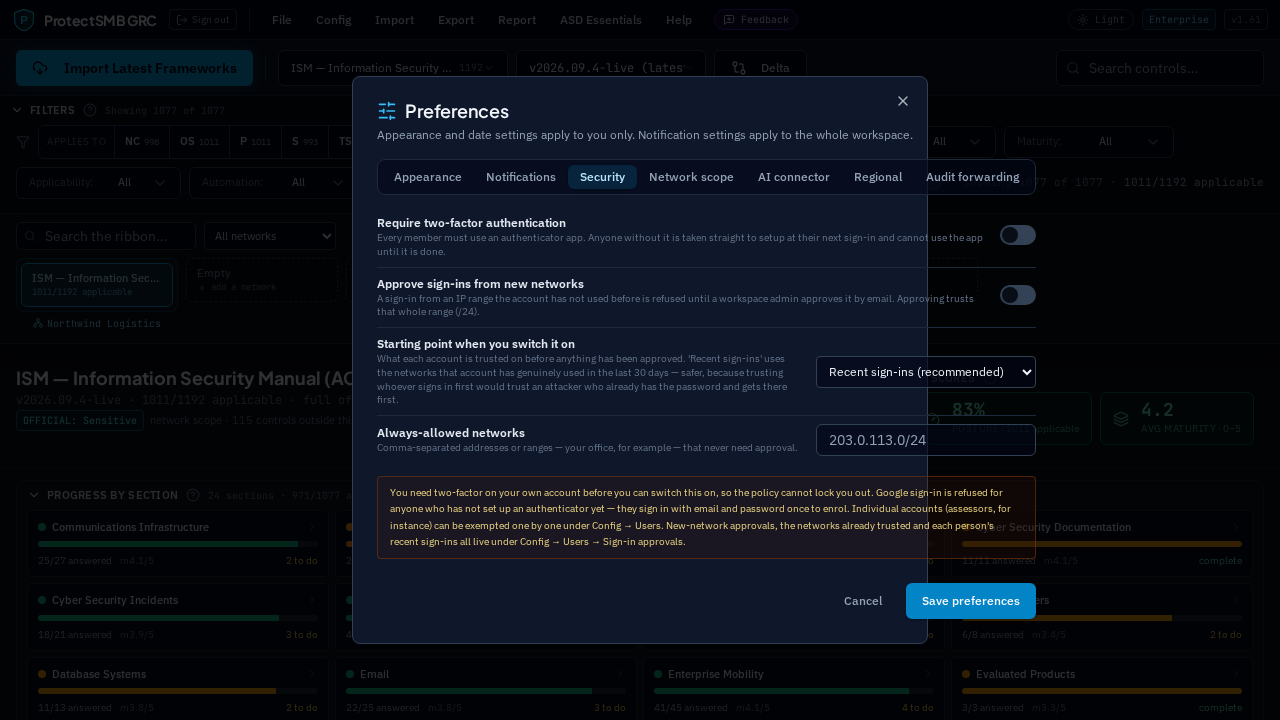
Two settings under Config → Preferences → Security decide how strict sign-in is for the whole workspace.
Require two-factor authentication. Everyone must use an authenticator app; anyone without one is taken straight to setup at their next sign-in. You need it on your own account first so the policy cannot lock you out, and individual accounts can be exempted.
Approve sign-ins from new networks. A sign-in from an IP range the account has never used is refused and an email goes to the workspace's administrators with the address, the approximate location, the device and the time. Approving from that email — or from Config → User Management → Sign-in approvals — trusts the whole /24 range, so the same home or office network works from then on. Requests expire after 24 hours.
Always-allowed networks. Put your office ranges here, in 203.0.113.0/24 form, and anybody signing in from them is never challenged.
Starting point when you switch it on. Nothing is approved for anybody at that moment, so this decides what is trusted. The default — recent sign-ins — trusts the networks each account has genuinely used in the last 30 days, which is deliberately safer than trusting whoever signs in first: somebody who already had a password and got there before your staff would otherwise have their own network allow-listed. Choose 'whoever signs in first' for the simpler behaviour, or 'approve every network' if you want nothing trusted without a decision.
The Sign-in approvals tab under Config → User Management shows what is waiting, every network currently trusted and who trusted it, and the recent decisions. Withdrawing a trusted network means the next sign-in from it needs approval again — useful when somebody leaves, or when a laptop goes missing.
Each person's last five sign-ins are kept with the time, the method, the device and roughly where from. Click the time in the 'Last signed in' column to see them; everyone can see their own from the header. Blocked sign-ins, approvals and denials are all written to the audit log and forwarded to your SIEM if you have one configured.
Administrators are a special case: two-factor is mandatory for the admin role and is switched on automatically the moment somebody is given it — by promotion, by invitation, or by your identity provider through SCIM. It cannot be turned off or exempted while they hold the role, and if they already had an authenticator enrolled it is cleared and their sessions are ended, so they enrol afresh at their next sign-in. You are warned before that happens. The reasoning is simple: a new administrator should never be the weakest account in the workspace.
32For admins: licence, seats and billing admins
Your licence tier decides which features are available and how many networks and seats you have. Essentials covers the Essential Eight assessment, evidence, reports and AI advice; Professional adds all frameworks, live framework updates, custom framework import, remediation tasks and trends; Enterprise adds assessor sharing, the audit log, security alerts, backup restore, extra networks and the documentation packs. A Bespoke tier is available where we switch on exactly the features you need.
Invoices are issued to the workspace and can be paid by card. Tiers 1 to 3 are sold on an annual cycle; monthly billing is only used on the Bespoke tier, where the amount is agreed with you.
A demo or trial workspace runs for 30 days. The countdown is shown at the top of the dashboard, turning amber in the last week. Nothing is billed during it and nothing is held back — you get the full product.
When the 30 days are up the workspace becomes read-only rather than locked. Everyone can still sign in, read every control, note and piece of evidence, and download every report and export — nothing is deleted and nothing is taken away. Only changes stop, and they come straight back the moment the subscription starts. If you need longer, say so and we will extend the window; your admins are emailed a week out, the day before, and on the day it closes.
Inviting a user beyond your licensed seats is declined with a clear message rather than billing you by surprise, and the same limit applies when users arrive through SCIM.
33For platform admins: the demo diary admins
Walkthroughs booked from the public website land in the /admin portal under 'Demo bookings', with the customer's name, organisation, contact details, size, framework of interest and what they asked you to cover. A booking starts as a 24 hour hold and only becomes firm when the visitor clicks the link in their email; holds that are never confirmed release themselves, and you can confirm one on a customer's behalf if they tell you by phone.
Mark each one held or a no-show once it has run, keep a private note against it, or cancel it — cancelling releases the time on the public calendar and emails the customer to let them know. The customer can also move or cancel their own booking from the link in their confirmation and reminder emails, and anything they move shows a 'moved from' line on the booking. The whole diary exports to CSV.
'Create trial workspace' turns a demo into a working trial in one click: the workspace is created with their organisation name and the framework they asked about, they are emailed an invitation to choose their own password, and it starts with a few controls answered, a short task list and note snippets so it does not look empty. The invitation link is shown on the tab as well, in case you would rather send it yourself.
'Closed dates' blocks out leave, a public holiday or a busy week: those days drop off the public calendar straight away, and anything already booked inside a range you close is flagged so you can decide whether to move it.
The same tab sets when people can book: which days of the week, the first and last hour, how long a slot runs, how much notice you need and how far ahead the calendar goes. Recurring patterns sit on top of those weekly days — 'every second Friday from 10 July' or 'the first Monday of each month', each with its own hours and slot length and an optional end date — and the next few dates are listed as you set one up. Closed dates override everything. Changes take effect on the website immediately. A reminder email goes out to the customer on the morning of the booking.
34For platform admins: the framework data model admins
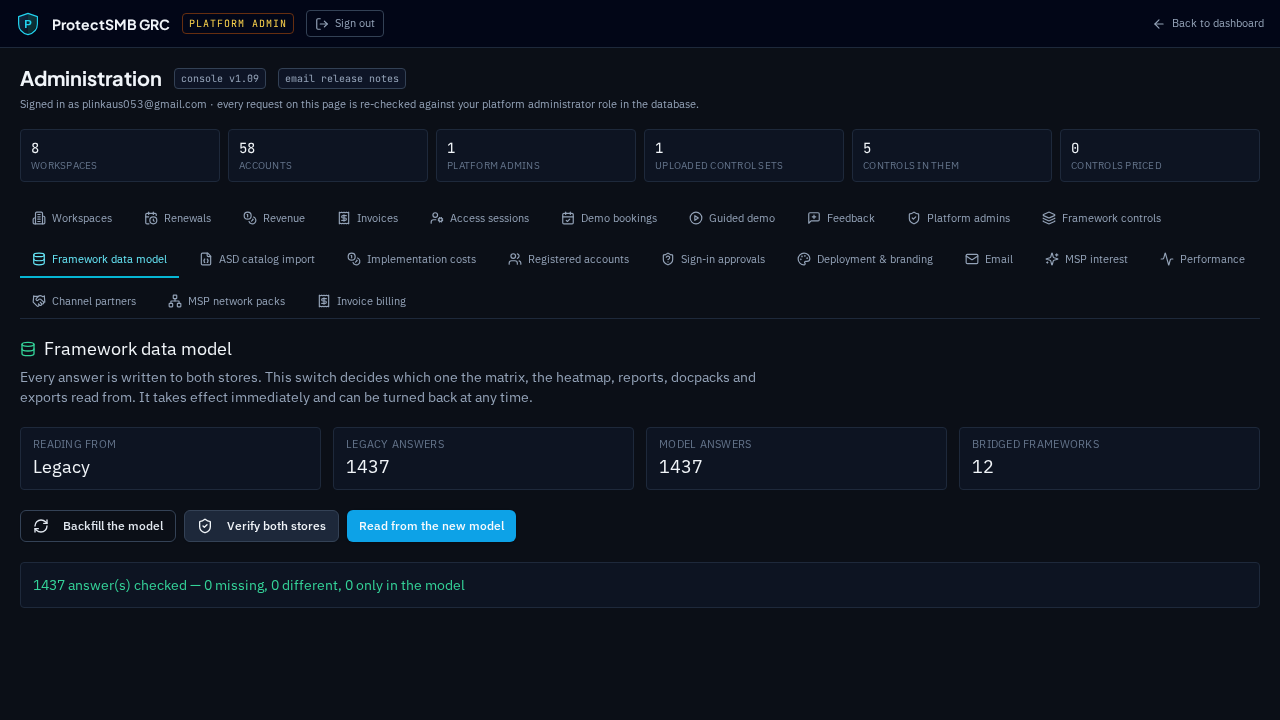
Assessment answers are held in two places at once. The original store is the one the product has always used; the newer one is a generic model that describes any framework the same way — chapters, domains, principles, actions — so a new framework needs data rather than code. Administration → Framework data model is where you move between them.
The panel shows which store the product is reading from, how many answers each one holds and how many frameworks have been brought across. Every answer anyone saves is written to both, whichever one is being read.
'Backfill the model' copies every existing answer across. It can be run as often as you like — it never duplicates anything, and it clears anything the original store no longer has.
'Verify both stores' compares them answer by answer, in both directions, and reports anything missing, anything different and anything the model holds that the original does not.
'Read from the new model' switches the whole product over — the matrix, the heatmap, reports, documentation packs, readiness, risks and every export. It takes effect immediately and refuses to turn on while the two stores disagree. 'Switch back to legacy' reverses it just as quickly, which is the point of having the switch.
Once you have run on the new model long enough to be satisfied, 'Remove the legacy copy' deletes the original answers. It only appears while the new model is being read, asks you to type a confirmation phrase, checks the two stores match one last time and writes a backup file before deleting anything. The removal is recorded in the audit log.
35For platform admins: the feedback register admins
Everything sent with the Feedback button lands in Administration → Feedback, newest first, with the workspace it came from, who sent it, their contact details, the summary and the full detail.
Filter by status to work a queue: new, reviewing, planned, done or declined. Open an entry to change its status or keep a private note against it — the sender never sees the note.
Delete removes an entry for good. It asks you to confirm first, and records in the audit log who deleted what.
Reply writes straight back to whoever sent it, without leaving the console. Type the reply in the box on the entry and send it: they get it by email with their original message quoted underneath, so they know what it is about, and replies to it come back to the admin address. Every reply is kept on the entry with who sent it and when, and an entry still marked new moves to reviewing the moment you reply.
A copy of each submission is also emailed to the admin address, so nothing waits on somebody remembering to check the console.
36For platform admins: branding and deployment admins
Everything about a deployment — the database, service addresses, provider keys, the email sender and the brand itself — is read from the environment, so the same platform can run under a different name for a different customer without a code change. Administration → Deployment & branding shows what this instance is actually running, read live from the server.
Preview a rebrand before you commit to it: type the product name, short name, legal entity, tagline, logo address and the two colours, and the panel shows you a header, a button and the invoice footer as they would appear. Nothing is saved — when you are happy, copy the configuration block it generates into the deployment's environment and restart. The web app reads its half at build time, so it needs rebuilding too.
Each major module has its own switch: Essential Eight, ISM, ISO 27001, NIST CSF, SOC 2, ASD Essentials, custom framework uploads, AI governance and this console itself. Turning a framework off hides it from the interface for everyone on the instance, while anything already assessed against it stays readable — nobody loses work because a module was retired.
Sovereign mode is for an air-gapped install. With it on, the platform refuses every outbound connection: no live framework fetching, no hosted AI provider and no hosted mail relay, so email goes through your own SMTP server instead. The control catalogues ship with the build, so assessing, reporting and documentation all work with no internet at all.
The Deployment tab also builds a sovereign install pack — a zip with a one-page install sheet (what to provision, in what order, how to verify it) and a sample environment file listing every variable with placeholders and no real credentials. That is what you hand to a customer standing up their own instance.
There are three ways a dedicated instance can be stood up, and the pack covers all three: Azure Container Apps in Australia East (the usual choice, managed, nothing to patch); Docker Compose on a Linux host, including fully air-gapped; and Windows Server 2022 on an Azure virtual machine, with IIS in front of two native Windows services and MongoDB on the machine itself — no Docker and no Linux anywhere, for a customer whose standard is Windows and who wants to patch and monitor the box with their own tools. The Windows path has its own guide and a PowerShell installer that does the work, under /sovereign/windows in the pack.
37For platform admins: keeping the Essential Eight current admins
The Essential Eight to ISM mapping ships inside the product, so an air-gapped site has it too. When ASD revises the maturity model you refresh it from the Essential Eight maturity view — the panel under the level scores is visible to platform administrators only, because the model is the model and must not differ from one client to the next.
'Refresh from ACSC' pulls ASD's current Essential Eight catalogue and stages it. Nothing changes yet: you are shown exactly what would — which controls ASD has added, which it has withdrawn, and which have had their maturity level, strategy or wording changed. Apply it when you are happy, or discard it and nothing is touched. Typographic differences such as curly apostrophes are ignored, so you only ever see real changes.
On a sovereign site with no internet access, 'Upload OSCAL' does the same job from ASD's catalogue file — download ISM_E8_ML3-baseline-resolved-profile_catalog.json on a machine that does have access, carry it in, and upload it. The review and apply step is identical.
Assessments are kept by control ID, so applying a revision never loses work. A control ASD has withdrawn simply stops counting towards a maturity level — its answer, notes and evidence stay where they are, and come back if ASD reinstates it. Every check and every apply is audited with the ASD catalogue version and the counts.
The product also checks once a month on its own and emails the platform owner the difference, so a revision does not sit unnoticed. It is never applied automatically — a person always approves it.
38Frameworks and your plan
Essentials covers the Essential Eight. Professional covers one framework of your choosing — Essential Eight, the ISM, ISO/IEC 27001, the NIST CSF or SOC 2 — picked the first time an administrator opens the dashboard. Enterprise covers all five at once, along with the cross-framework coverage view.
ASD Essentials, with its Enterprise IT, operational technology and cloud chapters, is included with every plan at no extra charge. It is switched on for your workspace when you ask for it, and appears in the menu as soon as it is.
The choice matters because everything else is built on it: the matrix you score, the reports you issue, the remediation you track and the readiness score you watch. Pick the standard your customers, insurers or auditors actually ask you about.
Choosing is deliberately a one-time decision. If your situation changes, contact us and we will move you across — anything you have already assessed stays saved, so nothing is lost if you later switch or move up to Enterprise.
On Professional you can still upload your own control set: a custom framework counts as your one framework. Cross-framework coverage, which answers a control once and applies it everywhere, needs several frameworks and is therefore part of Enterprise.
39For platform admins: emailing workspaces admins
Administration → Email sends a message to the people who use the platform, from your own mailbox rather than a no-reply address. Pick a template or start from scratch, write the message with basic formatting — bold, italic, underline, headings, lists and links — and choose who gets it.
Choose recipients by role (owners, admins, assessors, contributors or viewers) and by workspace, search by name, email or workspace, select everyone matching your filters in one click, and add any extra addresses that are not accounts on the platform.
Recipients are blind copied. The message is addressed to your own mailbox and everyone else travels in the envelope, so nobody can see who else received it. A large send is automatically split into batches that stay under your mail provider's limit.
Templates live in the console and can use placeholders — {{workspace_name}}, {{recipient_name}}, {{first_name}}, {{tier}}, {{renewal_date}}, {{readiness_score}} and {{domain}}. When a message uses any of them, each person gets their own copy with their own details filled in rather than one shared message.
You must send yourself a test before a broadcast will go out — it is the cheapest way to catch a typo. Every send is recorded with the subject, who sent it, how many recipients it reached and anything that failed, in the Sent list and in the audit log.
The mailbox itself is set up under Email → Mail server: host, port, username, app password and the From address. Google Workspace and Microsoft 365 both require an app password rather than the mailbox password. The password is encrypted before it is stored, and the SMTP_* environment variables are used instead when nothing is set here.
Port 465 and port 587 are both handled: 465 is encrypted from the first byte, 587 opens plain and is upgraded, and the right one is chosen from the port you give. If a send fails, the reason is written to Email → Failures with the host, port and the server's own words, which is usually enough to tell a wrong password from a blocked port.
40ASD Essentials: the three chapters
ASD Essentials is not one checklist. It has three chapters — Enterprise IT, operational technology and cloud — and each is assessed in its own right. Open ASD Essentials from the menu and you land on Framework home, which shows where each chapter stands and lets you open the one you are working on.
Every chapter reads the same way. Actions sit under the principle they deliver, and each principle sits under its category — govern, identify, protect, detect, respond, recover — with ASD's own statement of the principle printed above its actions, so you can see what the action is for before you score it.
Enterprise IT is imported straight from ASD's published OSCAL catalogue: 28 principles and 58 actions, their domain assignments, and ASD's Indicators of Good Practice against every action.
Operational technology has its own actions and its own hard questions — what your vital OT actually is, what cannot be patched, whether break-glass has been tested, whether you could run isolated.
Cloud is answered by who is responsible for what, which depends on whether you consume software-as-a-service, platform-as-a-service, or both.
Scoring is ASD's: not effective, partially effective, effective, or not applicable. An administrator can set whether the workspace sees those labels, a number or a percentage — the answer stored is always ASD's wording, only the display changes.
Posture dashboard puts the three chapters side by side, Action plan gathers every chapter's gaps into one list with owners and target dates, and each chapter has its own Word, PDF and spreadsheet reports.
41Indicators of Good Practice
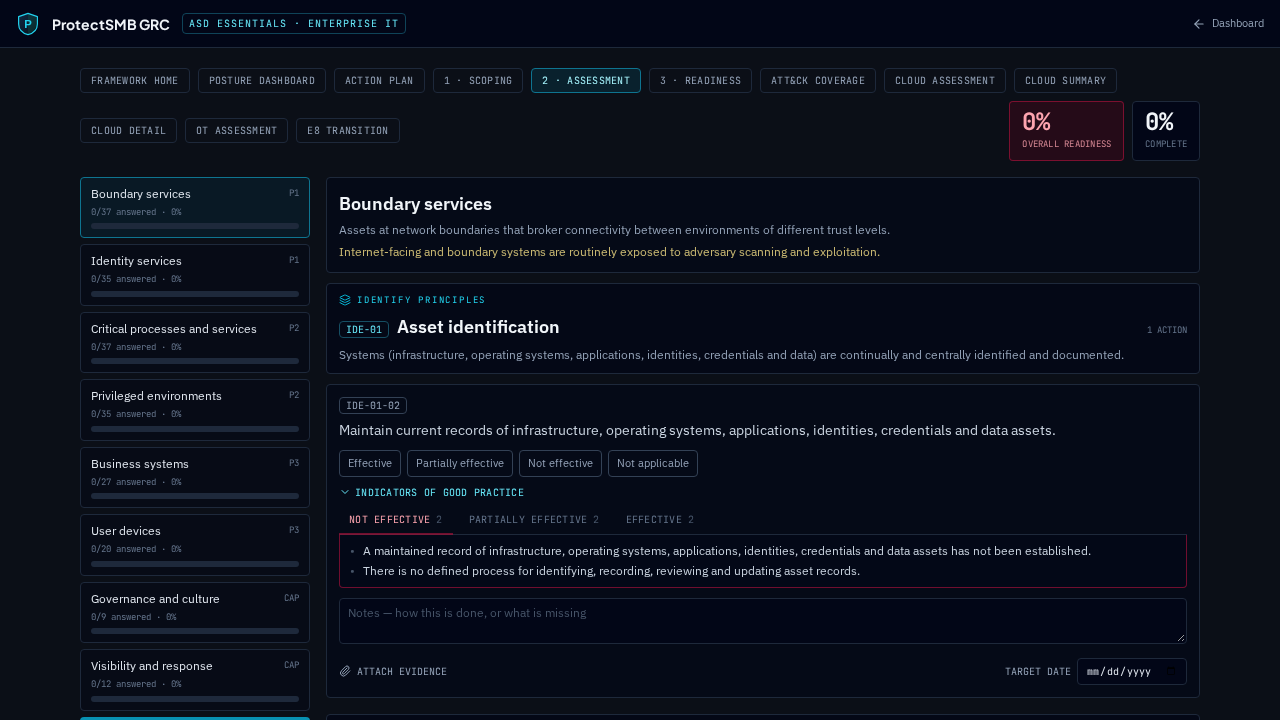
Under every action is a collapsible 'Indicators of Good Practice' panel. It is ASD's own rubric: what not effective looks like, what partially effective looks like, and what effective looks like, as a list of plain statements.
Open it beside the score buttons and the tab matching your current answer is highlighted, so you can check your call against ASD's description rather than your own impression of the words. On a phone the three levels stack as an accordion instead of tabs.
The panel is read-only — these are ASD's statements, not yours. Your reasoning goes in the notes box underneath, and the indicators you expanded are carried into the Word and PDF reports so an assessor can see what you judged against.
42Assessing operational technology
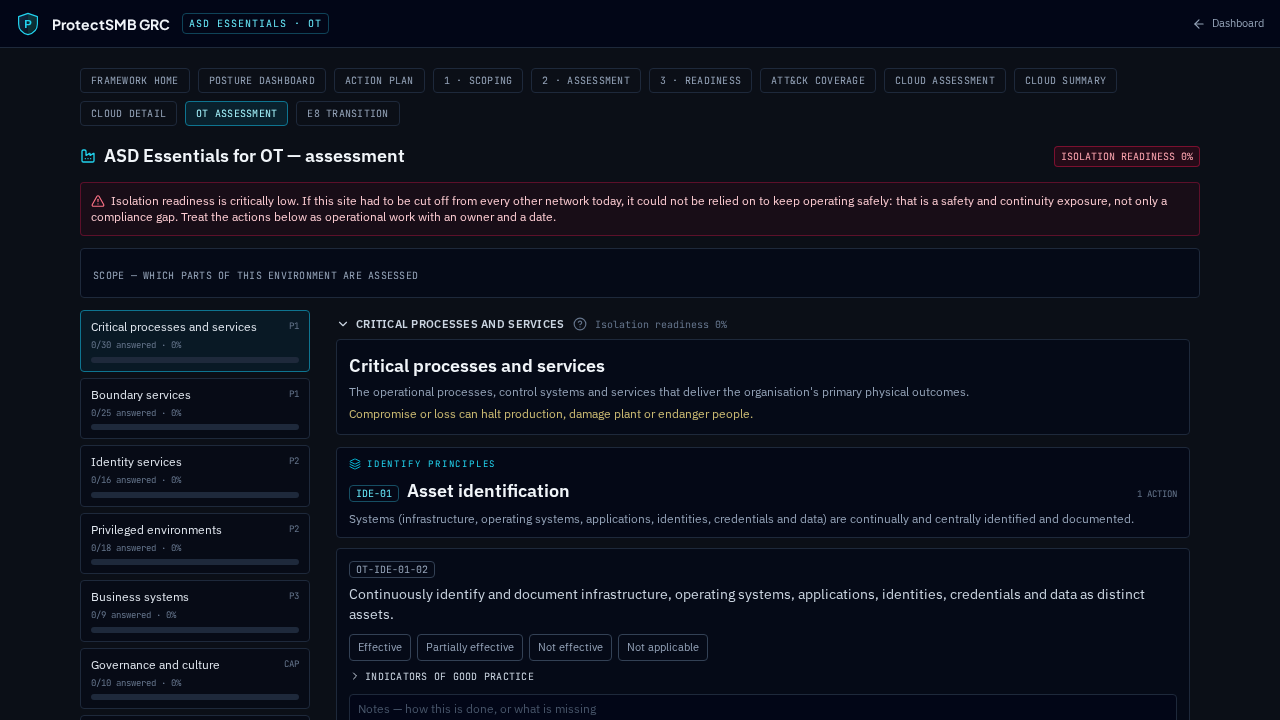
Open ASD Essentials → OT assessment. Start with Scope: mark which parts of the environment are in and out. The chapter is organised by domain — critical processes and services, boundary services, identity, privileged environments, business systems, plus governance and visibility as capability domains — and the sidebar shows how far each one has got.
Score each action the same way as anywhere else, with the indicator rubric beside it, notes underneath and evidence attached to the action itself.
Some OT actions ask for more than a score, because in OT the detail is the control:
Designated vital OT — the systems and services the site cannot run safely without. Every other action that speaks of vital OT refers back to this list, so fill it in first.
Compensating controls register — for each asset that cannot be patched: why, what protects it instead, the residual risk, who accepted it, and when it was last reviewed. A lapsed review holds the action at partially effective however you scored it.
Break-glass accounts — confirmed to exist, and tested. Untested, the action counts as not effective; a test older than a year is treated as stale.
Backup coverage — OT recovery is not just data. Tick off firmware, configuration, licences, calibration, project files and logic.
Degraded-state physical access — can your people reach the plant when power, network or the access control system is down? Until that has been tested, the action is not effective.
Isolation tagging — on each isolation action, tag which vital OT it covers, so what is not covered is visible rather than assumed.
Where the supporting detail is incomplete the action shows what it is being 'counted as', so an optimistic score never quietly inflates the isolation readiness figure at the top of the screen.
43Assessing cloud
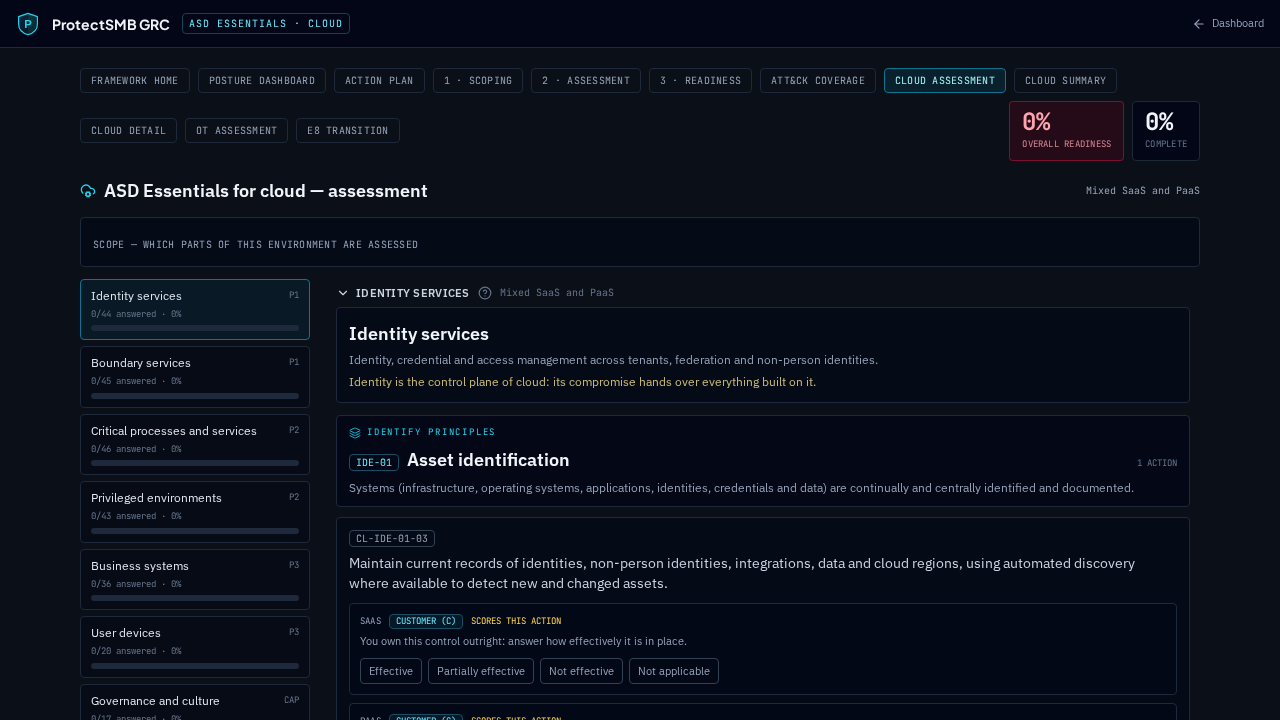
Open ASD Essentials → Cloud assessment. The first time, declare your service model: software-as-a-service only, platform-as-a-service only, or both. That decides who is responsible for what, so the actions change with it.
Each action is answered by its responsibility marker, shown inline against each service model you consume:
Customer — you own the control outright. Score it as you would any other action.
Supplied — the provider gives you the capability and you own its use. All three parts have to hold: it is enabled, it is configured securely, and it is used consistently. An insecure default or patchy use is not compliance.
Provider — the provider performs it, and your job is assurance. Record the evidence type and its date, whether its scope actually covers the services, features, regions and support tiers you use, and any gaps. Evidence that does not cover what you use is partially effective, never effective; where you hold none, say so plainly with 'no assurance evidence is held'.
On a mixed estate both service models are answered, and where they carry the same marker the weaker of the two answers is the one that scores. Split actions say so above the answer.
Four cloud actions ask for a register rather than a tick: the shared responsibility register (one entry per provider, what they supply, what you retain and the assurance evidence with its expiry), non-person identities, legacy authentication still in use with its decommissioning date, and the vital cloud services with whether their rebuild has actually been tested. Cloud summary and Cloud detail report all of it back, including where provider assurance does not cover what you use.
44For platform admins: importing ASD's catalogue admins
The Enterprise IT chapter is not typed up by us. It is imported from ASD's published OSCAL catalogue, which ships with the platform and is re-imported on every deployment.
When ASD publishes a revision, open the platform console → ASD catalogue import and upload the new file. You are shown exactly what it contained: principles imported, actions imported, domains identified, how many indicator statements came with them, and any record that could not be read with the reason it could not.
Records are matched on the action identifier, so an import updates the wording, the domains and the indicators and leaves every answer, note, evidence file and score where it is. Nothing is deleted. Each import is kept in the history on that screen and written to the audit log with the catalogue version.
If you have uploaded a catalogue newer than the one shipped with the platform, a restart will not put the older one back — the startup import stands down and says so.
45Getting help
This guide lives at /guide and is readable without signing in, so you can share it with anyone in the business. 'Download as Word' gives you the whole thing as a single document, screenshots included — useful for an induction pack.
Help → User Guide opens it from inside the app. Help → What's New lists everything added in each release, newest first. Help → About shows your version and build date — worth quoting if you contact us.
The public website has a contact form if you need to reach us and do not have a named contact yet. The Feedback button beside Help reaches us from inside the app — an idea, a problem, a question or praise — and gives you a reference number to quote. If something looks wrong, note the framework and version you were in, the control or document involved and what you expected to happen. Your audit log will usually show exactly what happened and when.